How to Access and Use the Accenture myTE Timesheet System Correctly
The Accenture myTE (Time & Expense) system is the global platform used by over 774,000 employees to log billable hours, track PTO, and manage project costs. Access depends on your employment division:
- Commercial Employees: Log in directly at myte.accenture.com using standard corporate credentials.
- Federal Services (AFS): Log in at go.afs.com/time using an active
@afs.combrowser profile. - Mobile Users: The app is not in public stores; it must be downloaded internally via the Microsoft Intune Company Portal.
Navigating enterprise software can often feel like a project in itself. For new hires and seasoned consultants alike, accurately recording time in the myTE system is a critical weekly task that ensures client billing accuracy, project budget tracking, and on-time payroll processing. Because the platform integrates deeply with global financial reporting, strict compliance and precise data entry are required.
This comprehensive overview breaks down the technical hurdles of accessing the system across different devices, explains the logic behind charge codes, and provides actionable solutions for the most common login and submission errors encountered by the workforce.
Where Do I Log In for Accenture myTE?
The first step to submitting your timesheet is ensuring you are attempting to access the correct portal. Because of strict data compliance and security regulations, the organization maintains separate network environments for its commercial operations and its federal contracts. Attempting to log into the wrong portal will result in an immediate authentication failure.
Authentication for both portals is handled via an API Production ESOPortal, which requires Multi-Factor Authentication (MFA). You will typically need your company-issued mobile device or a registered hardware token to approve the login request.
This is the standard global portal used by the vast majority of the workforce, including strategy, consulting, technology, and operations personnel working with private-sector clients.
- Primary URL: myte.accenture.com
- Network Requirement: Accessible via the standard corporate VPN or directly through the web with MFA.
- Profile: Uses your standard
@accenture.comMicrosoft profile.
Personnel working on government contracts are subject to elevated security protocols. The standard commercial links will not resolve for these accounts.
- Primary URL:
go.afs.com/time - Network Requirement: Requires connection to the AFS-specific network environment.
- Profile: Must use an
@afs.comprofile.
As of June 24, Accenture Federal Services executed a major network transition. Users must now ensure they are actively logged into their dedicated afs.com browser profile (Edge or Chrome) before attempting to access the timesheet. If you are logged into a personal Microsoft account or a legacy commercial account in your browser, the AFS time entry links will fail to load or display an "Application Under Maintenance" error.
If you are unsure which portal applies to you, check your official employment offer letter or your primary email address domain. If your email ends in @afs.com, you must use the federal portal exclusively.
How to Set Up the myTE Mobile App on Your Phone
Many consultants prefer to log their hours on the go, especially when traveling between client sites. However, a common point of confusion arises when employees search the Apple App Store or Google Play Store for "myTE" and find zero results. Discussions on internal forums and Reddit frequently highlight this exact frustration.
The application is intentionally hidden from public app stores to protect proprietary corporate data. Instead, it is distributed through an internal enterprise application catalog. To access it, you must first enroll your device in the company's mobile device management (MDM) system.
Open your device's public app store (Apple App Store or Google Play) and search for "Intune Company Portal" by Microsoft Corporation. Download and install this application. This acts as the gateway to all internal corporate apps.
Open the Company Portal app and sign in using your full corporate email address and password. You will be prompted to approve an MFA request. Follow the on-screen prompts to download the management profile. This step allows the company to secure corporate data on your device without accessing your personal photos or messages.
Once your device shows as "Compliant" within the Intune app, navigate to the "Apps" tab located at the bottom of the screen. This is your private, internal app store.
Search for "myTE" within the Company Portal catalog. Tap install. The application will now appear on your device's home screen alongside your personal apps, usually marked with a small briefcase icon indicating it is a managed application.
For AFS employees using a personal (non-AFS issued) mobile device, the process differs slightly. Instead of downloading an app, you can access a mobile-optimized web view by navigating to go.afs.com/mobiletime in your device's browser, provided you authenticate with your AFS credentials.
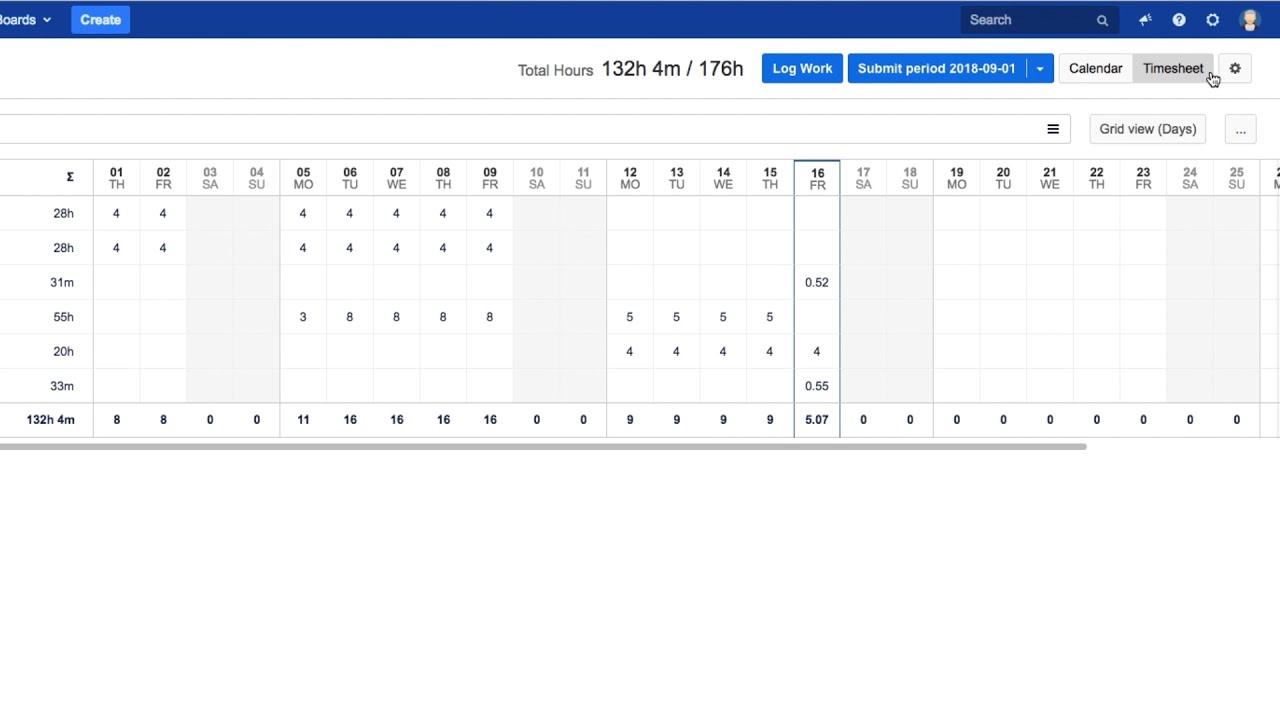
Image source: YouTube
How to Submit Your First Timesheet Without a Company Laptop
A frequent challenge during the onboarding process is the "hardware gap." New hires are often required to complete training modules and submit their first timesheet before their company-issued laptop arrives in the mail. Because timesheets are tied to payroll deadlines, missing a submission can delay your first paycheck.
If you find yourself in this situation, you have a few reliable options to ensure your time is recorded accurately.
Using the BYOD Web Portal
You can access the timesheet system from a personal computer (Windows or Mac) by utilizing the Bring Your Own Device (BYOD) infrastructure. This typically involves logging into the corporate web portal via a secure Citrix gateway. You will need to have your MFA method (usually a mobile app like Microsoft Authenticator) set up during your initial HR onboarding call.
Navigate to the standard login URL in an Incognito or InPrivate browser window to prevent your personal Microsoft accounts from interfering with the authentication process. Once logged in, you can access the web version of myTE just as you would on a corporate machine.
Temporary Manual Tracking
If technical issues prevent BYOD access, new hire guides strongly recommend keeping a detailed manual log. Create a simple spreadsheet or written list detailing:
- The date.
- The number of hours worked (typically 8 hours per standard workday).
- A brief description of the activities (e.g., "Ethics Training Module," "HR Onboarding Call," "Project Orientation").
Email this log to your assigned People Lead or HR representative before the timesheet deadline. They can either enter the time on your behalf (acting as a delegate) or hold the record to ensure you can backdate the entry once your hardware arrives and system access is fully provisioned.
What Are WBS Codes and Which One Should You Use?
The core mechanism of the timesheet system relies on Work Breakdown Structure (WBS) codes. A WBS code is a unique alphanumeric string assigned to a specific client project, internal initiative, or training program. When you log hours against a WBS code, the system calculates the financial cost of your time and either bills the client or allocates the expense to an internal budget.
Using the correct charge code is paramount. Incorrect coding can lead to client billing disputes, internal audit flags, and rejected timesheets that require manual reversal by a Project Control Officer (PCO).
| Charge Code Type | Description | When to Use |
|---|---|---|
| Billable (Client) | Direct work performed for an external client under an active contract. | When actively executing tasks outlined in a client Statement of Work (SOW). |
| Business Development (BD) | Time spent writing proposals, pitching to clients, or developing new offerings. | When assigned to a proposal team by a Managing Director or Sales Lead. |
| Training / Internal | Mandatory compliance training, town halls, or internal capability development. | During onboarding, annual ethics training, or when completing certifications. |
| Unassigned (Bench) | Time spent between active client projects. | When you are available for work but not currently staffed on a billable role. |
Navigating "Bench" Time
A common point of anxiety for new consultants is what to do when they are not yet assigned to a project. In consulting terminology, this is known as being "on the bench." Industry discussions frequently address the confusion around how to code this time.
If you are unassigned, you must use a specific local "Unassigned" or "Bench" WBS code provided by your HR partner or scheduling lead. You cannot simply leave the timesheet blank. If you transition onto a project mid-week, you will split your timesheet: logging bench codes for Monday and Tuesday, and the new client WBS code for Wednesday through Friday.
To find a specific code, use the "Search Charge Code" magnifying glass icon within the myTE interface. If you cannot locate the code, contact your project's PCO immediately—do not guess.
Image source: Fishbowl
How to Record PTO and Holidays on Your Timesheet
Accurately logging Paid Time Off (PTO) and company holidays is just as important as logging billable work. The system tracks your accrual balances and deducts hours based on your timesheet entries.
Understanding the PTO Policy
According to the official U.S. benefits documentation, eligible employees accrue between 13 and 27 days of PTO annually, depending on their career level and years of service. This single PTO bank is used for both vacation days and personal sick time.
When taking a full day off, you will enter 8 hours under the designated PTO charge code (which is typically pre-loaded into your myTE profile under a "Time Off" category). If you take a half-day, you would log 4 hours to PTO and 4 hours to your active project WBS.
Holidays and Parental Leave
Standard company holidays are usually pre-populated in the system. When you open your timesheet for a period containing a holiday (like Thanksgiving or Independence Day), you will often see 8 hours already allocated to the Holiday charge code. If client demands require you to work on a company holiday, you must manually delete the holiday hours, enter your billable hours, and coordinate with HR to bank the holiday for future use.
For extended absences, such as parental leave—which offers up to 16 weeks for birth parents and 8 weeks for non-birth parents—special leave codes are utilized. These codes are typically activated by the HR leave management team and may require you to submit timesheets in advance or have a delegate manage them during your absence.
Common myTE Login Errors and How to Fix Them
Even with the correct links and credentials, technical glitches can interrupt the submission process. Here are the most frequent issues and how to resolve them efficiently.
The "Access Denied" Loop
The most common error is a continuous loop where the portal accepts your password, processes the MFA, and then returns to the login screen with an "Access Denied" or "Authentication Failed" message. This is almost always caused by conflicting cached credentials in your browser.
The Fix: Open a completely new Incognito window (Chrome) or InPrivate window (Edge). Navigate directly to the login URL without using bookmarks. If this works, clear your primary browser's cache and cookies, specifically targeting any data associated with microsoftonline.com and the corporate domain.
Locked Timesheets
Timesheets operate on strict financial periods (usually bi-monthly or monthly, depending on your specific contract and region). If you attempt to edit a timesheet after the period has closed and financial processing has begun, the fields will be grayed out and locked.
The Fix: You cannot unlock a timesheet yourself. You must contact your project manager or PCO to request a "re-open." They will need to submit a formal request to the finance team, detailing the reason for the late adjustment. This process can take several days and may impact client invoicing, so it should be avoided whenever possible.
AFS Support Channels
Because the AFS network environment is highly restricted, standard IT support cannot always resolve federal login issues. If you are an AFS employee experiencing persistent access failures, particularly related to the recent browser profile transition, you must use dedicated support channels. Contact the AFS help desk directly at 1-855-397-1210 or email help@afs.com from a secure device.
Best Practices for Successful Time Submission
To maintain compliance and ensure smooth project operations, adopt these standard practices for time entry.
Save Daily, Submit Periodically
The platform features both a "Save" and a "Submit" function. It is highly recommended to enter and save your hours at the end of every workday. This prevents the frantic Friday afternoon scramble to remember what you worked on on Monday. However, you should only click Submit at the end of the reporting period (e.g., the 15th and the last day of the month), as submitting locks the document and routes it to your manager for approval.
Maintain Clear Audit Trails
For many government and highly regulated private-sector clients, simply entering an "8" in a box is insufficient. You must utilize the "Description" or "Comments" field to briefly detail the work performed (e.g., "Drafted Q3 architecture review document," "Facilitated UAT testing sessions"). These comments are frequently audited by clients before they pay the invoice. Vague comments like "meetings" or "admin" are common reasons for timesheet rejection.
By understanding the technical infrastructure, utilizing the correct charge codes, and adhering to strict submission deadlines, you can ensure that your time tracking remains a seamless part of your weekly routine rather than a recurring administrative hurdle.
Frequently Asked Questions
Final Thoughts & Key Takeaways
Successfully managing your time entry is a fundamental responsibility that directly impacts project health and payroll. By understanding the specific technical requirements of your division, you can avoid the most common administrative delays.
- Verify your portal: Commercial users navigate to myte.accenture.com, while AFS users must use go.afs.com/time.
- Confirm your WBS code with your project lead before the end of your first week on a new account.
- Install the Microsoft Intune Company Portal if you intend to submit hours via a mobile device.
- Save your hours daily within the system to maintain an accurate audit trail and prevent data loss.
- Submit your finalized timesheet strictly by the 15th and the last day of the month to ensure on-time payroll processing.
- Clear your browser cache or use Incognito mode if you encounter persistent "Access Denied" authentication loops.