How to Access and Use the TikTok Shop Streamer Live Product Dashboard
The TikTok Shop Streamer Live Product Dashboard (also known as the LIVE Manager) is accessed differently depending on your account type. Registered Sellers access it through the TikTok Shop Seller Center under the "LIVE Manager" tab. Creators and Affiliates access it via TikTok.com by navigating to Creator Tools > LIVE Shopping. For immediate access, authenticated users can navigate directly to shop.tiktok.com/streamer/live/product/dashboard on a desktop browser.
Managing a live shopping event requires more than just a smartphone and a ring light. As live commerce continues to mature, creators and brands are increasingly relying on desktop-class tools to manage inventory, track real-time analytics, and interact with viewers. The TikTok Shop streamer live product dashboard serves as the central command center for these operations.
This comprehensive guide explores how to access the dashboard, resolve common technical issues like the notorious "JavaScript enabled" error, and integrate professional broadcasting software like OBS to elevate your production value.
Where to Find the TikTok Shop Streamer Live Product Dashboard
Because the TikTok ecosystem serves multiple types of users—from independent creators to massive retail brands—the entry point for the dashboard varies based on your specific account permissions. According to TikTok Seller University documentation, there are distinct pathways for different user roles.
If you own the inventory and manage a registered TikTok Shop, your primary entry point is the TikTok Shop Seller Center. Log in to your seller account, navigate to the left-hand sidebar, and click on LIVE Manager. This route provides full access to inventory management and order tracking alongside the streaming tools.
If you sell products on behalf of other brands for a commission, you will access the dashboard through the main TikTok website. Go to TikTok.com, log in, click on your profile picture, select Creator Tools, and then navigate to LIVE Shopping. This view focuses heavily on commission tracking and sample management.
Multi-Channel Networks (MCNs) and official TikTok Shop Partners use the TikTok Shop Partner Platform. This specialized portal allows managers to switch between multiple creator accounts, monitor aggregate GMV (Gross Merchandise Value), and manage stream keys for their roster of talent.
The Direct URL Shortcut: For users who are already logged into their respective accounts on their browser, you can bypass the menus by navigating directly to shop.tiktok.com/streamer/live/product/dashboard. However, if your session has expired, this link may redirect you to a generic login page or display an error.
How to Fix the JavaScript Enabled Error on Your Dashboard
One of the most frequent technical hurdles users face when attempting to open the LIVE Manager is a blank white screen displaying a "JavaScript is not enabled" error. The TikTok dashboard is a complex, React-based web application that requires continuous background scripting to update real-time sales data and chat feeds.
If you encounter this error, it is rarely because JavaScript is actually turned off in your browser. Instead, it is typically caused by aggressive browser security settings or third-party extensions blocking the scripts from executing on TikTok's domains.
Extensions like uBlock Origin, AdBlock Plus, and the native Brave Browser "Shields" frequently misidentify TikTok's real-time analytics scripts as tracking malware. You must whitelist tiktok.com and tokopedia.com (which handles some backend e-commerce routing in specific regions) for the dashboard to load correctly.
Follow these steps to resolve the issue in Google Chrome or Microsoft Edge:
- Access Site Settings: Navigate to the dashboard URL. Click the small "Lock" or "Tune" icon located on the far left side of your browser's address bar.
- Open Permissions: Select Site Settings (Chrome) or Permissions for this site (Edge) from the dropdown menu.
- Force Allow JavaScript: Scroll down the list of permissions until you find JavaScript. Change the dropdown menu from "Allow (default)" to explicitly Allow.
- Disable Conflicting Extensions: Click your browser's extension puzzle piece icon. Pause or disable any ad-blockers, script blockers (like NoScript), or strict privacy extensions specifically for this site.
- Perform a Hard Refresh: Return to the dashboard tab and press
Ctrl + F5(Windows) orCmd + Shift + R(Mac). A standard refresh may load a cached version of the error; a hard refresh forces the browser to download the scripts directly from the server.
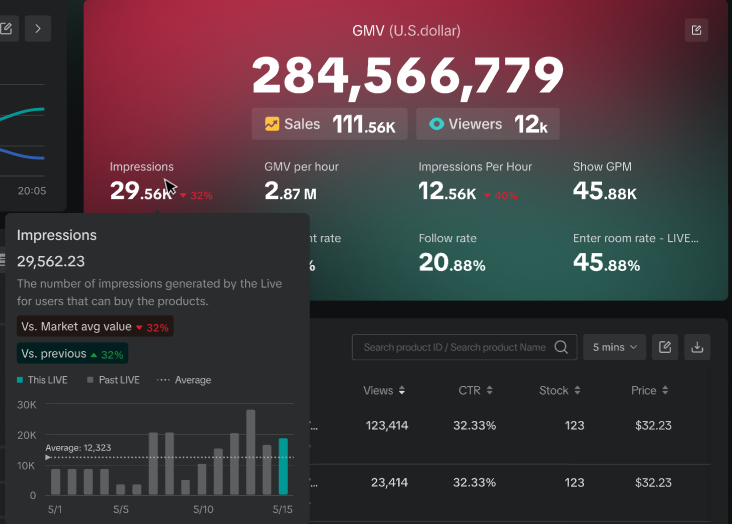
Image source: TikTok
How to Manage Products During Your TikTok Live Stream
Once you have successfully accessed the dashboard, the primary function of the tool is inventory management. The interface is divided into three distinct panels: the left panel for product management, the center panel for your video preview, and the right panel for chat and analytics.
According to guidelines from TikTok Shop Creators Official, you must have at least one product added to your showcase to initiate a shopping live stream. However, experienced streamers consistently recommend loading a minimum of 10 to 15 products into the dashboard before going live.
The 10-Product Strategy
Having a robust product list serves two purposes. First, it populates the "Shopping Bag" icon on the viewer's screen, encouraging them to browse your catalog even when you aren't actively pitching a specific item. Second, it allows you to pivot quickly. If your primary product isn't converting well based on real-time data, you can instantly switch to a backup product without needing to manually search and add items while live.
Pinning and Sorting in Real-Time
The most critical action you will take in the dashboard is "Pinning" products. When you are ready to discuss a specific item on camera:
- Locate the product in the left-hand management panel.
- Click the prominent Pin button next to the item.
- A product card will immediately appear on the screen for all viewers, overlaying the bottom portion of the video feed.
- Viewers can tap this card to purchase the item without leaving the stream.
You can also rearrange the order of products in the viewer's shopping bag by dragging and dropping the items in your left panel, or by manually editing the sequence numbers. It is highly recommended to keep the currently pinned product at the number one spot.
Setting Up Flash Sales and Giveaways
Beyond basic pinning, the dashboard allows you to trigger interactive promotional tools. Under the "Marketing" tab within the LIVE Manager, you can initiate a Flash Sale, which places a countdown timer and a discounted price on a specific product card.
You can also run Giveaways to boost engagement. The dashboard supports "Comment-to-Win" mechanics, where viewers must type a specific phrase (e.g., "TikTok Shop") in the chat to enter. The system will automatically track entries and randomly select a winner, displaying the result on screen. This is a highly effective method for rapidly increasing chat velocity, which signals to the TikTok algorithm that your stream is engaging.
Why You Might Not See Your Stream Key or Server URL
Many creators access the dashboard hoping to find their RTMP Server URL and Stream Key so they can broadcast using professional software like OBS Studio. However, they often find these options missing from their LIVE Center settings.
This absence is not a glitch. TikTok heavily restricts "Producer" access (the ability to use third-party stream keys). For standard accounts, TikTok prefers users to broadcast via the mobile app or their native desktop software, TikTok LIVE Studio.
In many regions, stream key access is gated behind the "Agency" ecosystem. To unlock these advanced streaming features, creators typically need to be part of an official TikTok Creator Network (MCN). These agencies have backend access to request stream keys on behalf of their roster. If you are an independent seller, you may need to reach a specific threshold of followers and consistent live GMV before the platform automatically unlocks the stream key option in your dashboard.
If you cannot access a stream key, you can download TikTok LIVE Studio directly from the platform. While it lacks some of the advanced audio routing and plugin support of OBS, it natively integrates with your TikTok Shop account, allowing you to manage products and broadcast from a single application without needing a stream key.
How to Set Up a Professional Stream Using OBS and the Live Manager
For creators who do have stream key access, combining OBS Studio with the TikTok LIVE Manager creates a highly capable broadcasting environment. This setup allows you to use high-end mirrorless cameras, professional lighting, and complex scene transitions while managing your e-commerce data on a separate monitor.
The Dual-Canvas Workflow
One of the major challenges of modern streaming is the need to broadcast vertically (1080x1920) for TikTok while simultaneously recording or streaming horizontally (1920x1080) for platforms like YouTube. Running two separate instances of OBS can severely tax your computer's CPU and GPU.
The solution is the Aitum Vertical plugin for OBS. As detailed in various expert OBS tutorials, this plugin adds a second, vertical canvas alongside your standard horizontal workspace. You can link your TikTok stream key directly into the Aitum plugin, allowing you to push a vertical feed to TikTok Shop while your main OBS outputs a horizontal feed elsewhere—all from a single software instance.
Using OBS Virtual Camera
If you do not have a stream key but still want to use OBS to manage your camera and color grading, you can use the OBS Virtual Camera feature. By starting the virtual camera in OBS, you can open TikTok LIVE Studio (or the web-based Streamer Desktop), select "OBS Virtual Camera" as your video input source, and bypass the need for an RTMP key entirely.
TikFinity Integration
To keep your TikTok Shop dashboard focused purely on sales and product management, you can offload viewer alerts (new followers, gifts, shares) to a third-party tool like TikFinity. TikFinity connects to your TikTok account and generates browser source URLs that you can paste into OBS. This allows animated alerts to trigger on your video feed without cluttering your e-commerce dashboard.
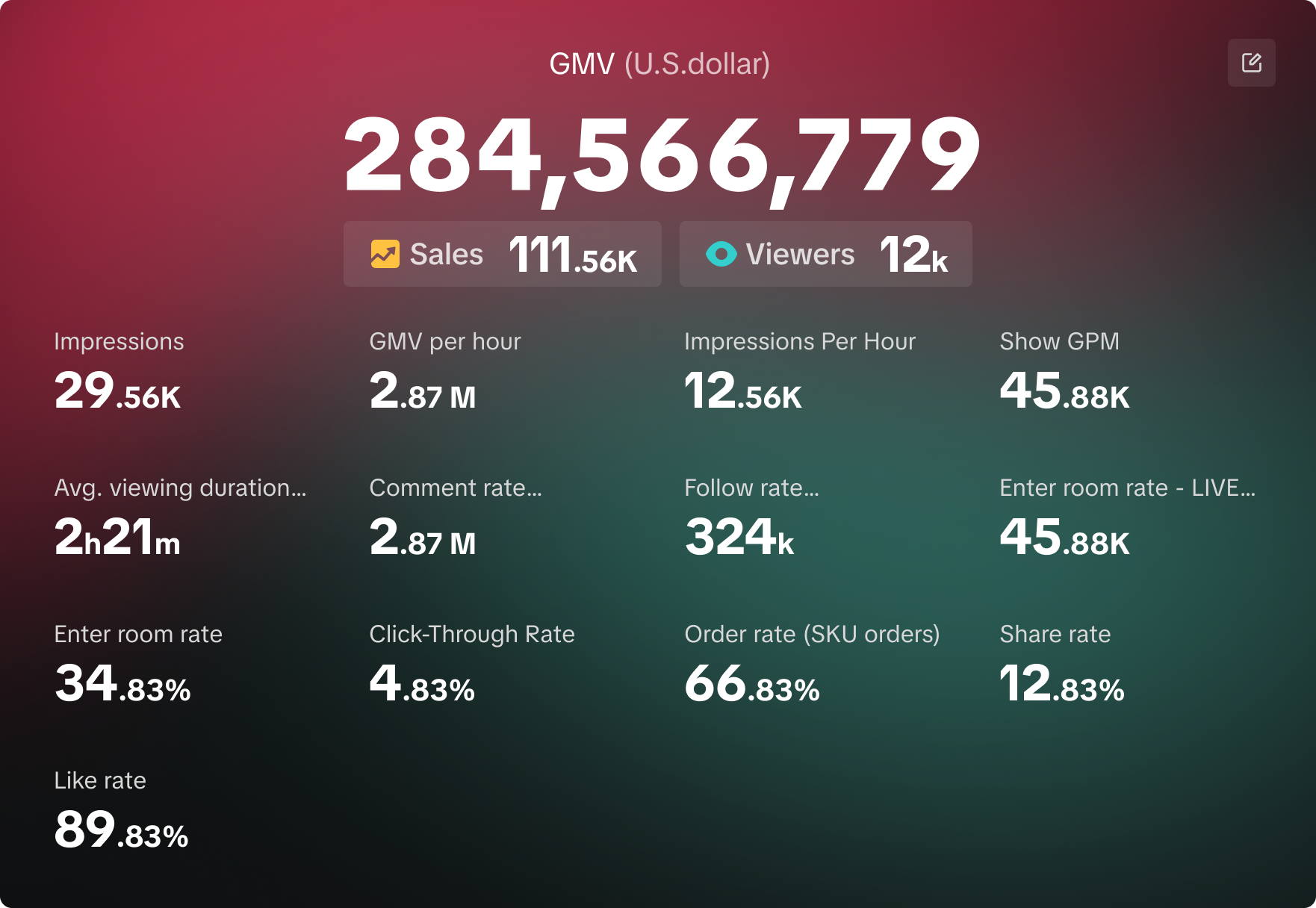
Image source: TikTok
How to Optimize Your Audio for Live Shopping
Poor audio quality is one of the fastest ways to lose viewers during a live shopping event. When using desktop streaming tools, audio routing can become complicated, leading to echoes, desync issues, or robotic-sounding voices.
Manual Audio Routing
A common mistake is leaving your audio input set to "Default" in your streaming software or the TikTok dashboard. Windows frequently changes default audio devices when new peripherals are plugged in. Always manually select your specific microphone (e.g., "Shure SM7B via Focusrite USB") in the audio settings to prevent the system from accidentally pulling audio from a low-quality webcam mic.
The 50% Rule for Noise Suppression
If you are using TikTok LIVE Studio, the software includes built-in noise suppression to filter out background hums like air conditioners or PC fans. However, setting this suppression too high will aggressively clip the frequencies of your voice, resulting in a "robotic" or underwater sound.
According to community troubleshooting guides, the optimal setting for noise suppression in TikTok's native software is exactly 50%. This provides a balanced middle ground, removing ambient room noise while preserving the natural timbre of your voice.
NVIDIA Broadcast Integration
For users with compatible NVIDIA graphics cards, routing your microphone through NVIDIA Broadcast before it reaches OBS or the TikTok dashboard is highly recommended. This software uses AI to isolate your voice and eliminate room echo—a common issue for creators streaming from untreated rooms or warehouses. You simply select "NVIDIA Broadcast" as your microphone input in your streaming software.
How to Use Live Diagnosis to Increase Your Sales Mid-Stream
While the left panel of the dashboard is for action, the right panel is for analysis. The LIVE Diagnosis tool is an essential feature that provides real-time feedback on the health of your broadcast.
Reading the Right Panel
During your stream, the dashboard tracks several key metrics:
| Metric | What It Measures | Actionable Insight |
|---|---|---|
| Viewer Count (PCU) | Peak Concurrent Users currently watching. | Indicates the immediate reach of your stream. Sudden drops suggest the current topic is losing interest. |
| Product Click-Through Rate (CTR) | Percentage of viewers who click the pinned product card. | A low CTR means your verbal pitch isn't compelling enough, or the product price is too high. |
| Gross Merchandise Value (GMV) | Total revenue generated during the session. | Tracks overall financial success and helps identify which products drive the most revenue. |
The "Diagnosis" Pivot
The true value of the LIVE Diagnosis tool is its ability to prompt mid-stream pivots. If the dashboard indicates that viewer retention is dropping rapidly, it will often flag this in the diagnosis panel. When you see this warning, it is time to pivot your strategy immediately.
Effective pivots include unpinning the current product and introducing a completely different category of item, triggering a "Comment-to-Win" giveaway to spike chat engagement, or initiating a 5-minute Flash Sale to create urgency among the remaining viewers.
Post-Stream Analytics
After you end your broadcast, the dashboard generates a comprehensive "Live Review." This report breaks down viewer retention minute-by-minute, allowing you to see exactly when viewers joined and left. By cross-referencing this data with your stream recording, you can identify which sales pitches worked and which segments caused viewers to scroll away, allowing you to refine your run-of-show for the next event.
Frequently Asked Questions
- Can I access the TikTok Shop dashboard on a Mac?
- Yes. The LIVE Manager is a web-based application that runs entirely within your browser. It is fully compatible with macOS when using modern browsers like Google Chrome, Microsoft Edge, or Safari, provided JavaScript is enabled.
- Why can't I see the "Pin" button next to my products?
- The "Pin" button only becomes active and visible after your live stream has officially started. If you are in the pre-stream setup phase or "Practice Mode," you can add products to your showcase, but you cannot pin them to the screen until you are live.
- How many products can I add to one live stream?
- TikTok allows you to add up to 100 products to a single live session showcase. However, managing that many items can be overwhelming. A curated list of 10 to 20 highly relevant products is generally considered optimal for maintaining viewer focus.
- Do I need 1,000 followers to use the Streamer Desktop?
- The requirements depend on your account type. Registered TikTok Shop Sellers can go live and use the dashboard with zero followers. However, Affiliate Creators typically need to meet the standard TikTok threshold (often 1,000 to 5,000 followers depending on the region) to unlock live streaming and affiliate commerce features.
- Does the dashboard work on mobile browsers?
- No. The streamer product dashboard is specifically designed for desktop-class displays. Attempting to load the URL on a mobile browser will typically result in formatting errors or a prompt directing you to use the native TikTok mobile app for live management.
The Bottom Line
Transitioning from mobile streaming to the desktop-based TikTok Shop Streamer Live Product Dashboard is a significant step forward for any e-commerce creator. By utilizing a multi-monitor setup, you gain precise control over your inventory, real-time analytics, and broadcast quality.
- Verify your entry point: Sellers use the Seller Center, while Affiliates use Creator Tools.
- Whitelist the domain: Ensure ad-blockers are disabled for TikTok to prevent JavaScript errors from breaking the dashboard.
- Pre-load inventory: Add at least 10 products before going live to give yourself flexibility during the broadcast.
- Optimize your stack: Use the Aitum Vertical plugin in OBS or TikTok LIVE Studio to manage high-quality video feeds.
- Monitor the data: Actively watch the LIVE Diagnosis panel to pivot your sales strategy if viewer retention drops.
- Control your audio: Manually route your microphones and keep noise suppression at 50% to maintain vocal clarity.