Image source: Magicul
Receiving a Canva presentation link is incredibly common in modern workplaces and classrooms. Whether a colleague shared a project via Slack, a teacher emailed a lesson plan, or you purchased a template online, you are often left staring at a web browser when what you actually need is a local, editable Microsoft PowerPoint (.pptx) file.
Bridging the gap between a cloud-based Canva URL and a desktop PowerPoint file can be frustrating, especially when you encounter greyed-out download buttons, restricted permissions, or formatting that breaks the moment you export it. The process is rarely as simple as clicking a single "Download" button when you are starting from a shared link.
To download a Canva presentation from a link to PowerPoint, your method depends entirely on your access level:
This comprehensive guide covers step-by-step instructions for handling every type of Canva link. We will explore how to bypass view-only restrictions, troubleshoot missing download buttons, identify hidden premium elements that trigger paywalls, and use advanced methods to ensure your exported PowerPoint maintains its original layout and high-quality formatting.
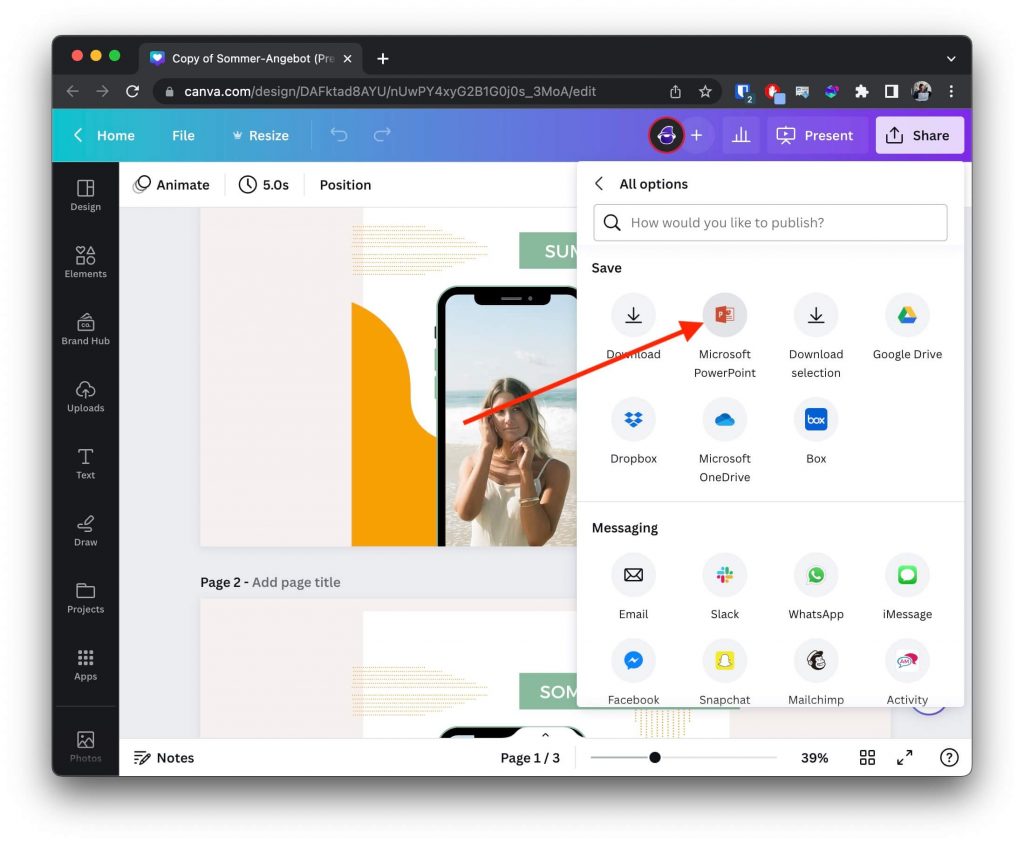
If the person who shared the Canva link granted you "Edit" permissions, the process of converting the web-based design into a local PowerPoint file is relatively straightforward. Canva has built-in functionality to translate its proprietary cloud format into the standard .pptx format used by Microsoft Office.
However, before you begin, you must ensure you are properly authenticated. According to technical documentation from the Magicul Blog, you cannot export a Canva design to PowerPoint without being logged into a Canva account. Even if the link is set to "Anyone with the link can edit," anonymous guest users are often restricted from utilizing advanced export features. If you do not have an account, you will need to create a free one to proceed.
Follow these exact steps to export your presentation:
Once you click download, Canva's servers will process the conversion. Depending on the size of the presentation and the number of high-resolution images it contains, this can take anywhere from a few seconds to a couple of minutes. The file will then save to your computer's default downloads folder as a .pptx file, ready to be opened in Microsoft PowerPoint, Apple Keynote, or Google Slides.
The most common hurdle users face when searching for how to download a Canva PPT from a link is discovering that the "Share" button does not contain a download option. If you click "Share" and only see options to copy the link or view the presentation in full screen, you have been given a "View-only" link.
When a creator shares a design as "View-only," Canva intentionally strips away export privileges to protect the creator's intellectual property. You cannot directly convert a view-only link into a PowerPoint file. However, there is a highly effective workaround: you must transfer ownership of the design to yourself by making a copy.
By duplicating the presentation, you create a brand-new file in your personal Canva dashboard. Because you are the owner of this new file, you are granted full administrative rights, including the ability to export it to PowerPoint.
In some strict corporate or educational environments, the original creator may have gone into their advanced share settings and explicitly unchecked the box that allows viewers to duplicate the file. If you click "File" and the "Make a copy" option is greyed out or missing entirely, you have hit a hard permission wall.
In this scenario, there is no technical hack to bypass the restriction. You must contact the person who sent you the link and ask them to provide a Template Link instead of a View-only link. A Template Link is specifically designed to allow recipients to generate their own editable copy without altering the original master file.
Even if you have edit access or have successfully made a copy of the presentation, you might still encounter a situation where the final "Download" button is greyed out, or Canva prompts you with a paywall. Understanding why this happens requires looking at how Canva monetizes its platform.
If you are using a free Canva account and you attempt to download your presentation to PowerPoint, you may be greeted with a popup asking you to "Pay and Download" or upgrade to Canva Pro. This occurs because the presentation contains premium elements—such as stock photos, vector graphics, custom fonts, or audio tracks—that are restricted to paid subscribers.
According to the Canva Help Center, a single premium icon on slide 45 of a 50-slide presentation is enough to lock the entire PowerPoint export behind a paywall. To proceed without paying, you must locate and remove these premium elements.
Finding a tiny, watermarked graphic hidden behind a text box can be maddening. Instead of clicking randomly around your slides, use this insider technique to quickly identify the culprits:
Canva and Microsoft PowerPoint operate on fundamentally different rendering engines. Canva is a web-based platform that relies on HTML5, CSS, and cloud-hosted web fonts. PowerPoint is a local desktop application that relies on system fonts and proprietary Microsoft rendering protocols. Because of this architectural difference, direct exports rarely look exactly like the original.
The most frequent complaint after downloading a Canva PPT from a link is that the text looks terrible. Sentences that fit perfectly on one line in Canva might spill over into two lines in PowerPoint, ruining the layout.
This happens because Canva uses custom cloud fonts. When you export to PPTX, Canva does not embed the actual font file into the presentation; it only embeds the *name* of the font. When you open the file, PowerPoint searches your computer's hard drive for that font. If you don't have it installed (which is highly likely for custom Canva fonts), PowerPoint silently substitutes it with a default system font like Calibri or Arial. Because Calibri has different letter spacing and sizing than the original font, your text boxes overflow.
To fix this, you must either manually download the specific fonts used in the Canva design from a site like Google Fonts and install them on your computer before opening the PPTX, or change the fonts in Canva to standard web-safe fonts (like Arial, Times New Roman, or Trebuchet MS) before exporting.
Canva offers beautiful, fluid page transitions and element animations. Unfortunately, the vast majority of these do not survive the translation to PowerPoint. When you export via the standard Share > PowerPoint method, Canva strips out complex animations, leaving you with static slides.
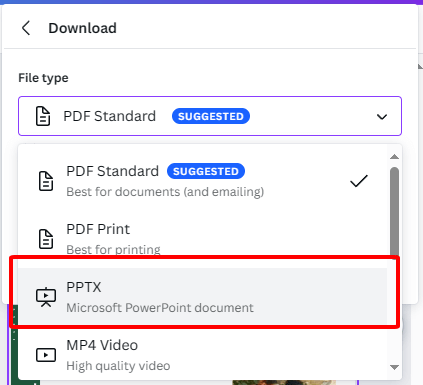
If visual accuracy is more important to you than having editable text boxes, or if your layout is completely breaking during the native PPTX export, you should use the "PDF Bridge" method. This technique is widely recommended by presentation design agencies.
Instead of exporting directly to PowerPoint, you export the Canva design as a high-quality PDF, and then use a dedicated PDF-to-PPT converter tool (like Adobe Acrobat, Plus AI, or MobiPDF) to generate the final file.
Why does this work better? When Canva exports a PDF, it "bakes in" the exact visual layout, often outlining the fonts so they render as vector shapes rather than editable text. When the third-party converter turns that PDF into a PowerPoint, it prioritizes visual alignment over text editability, ensuring your slides look exactly as they did in the browser.
As Canva has evolved, it has introduced new formats like scrolling websites and massive bulk document generation. These advanced formats require specific handling when you are trying to extract them via a shared link.
If someone sends you a link to a Canva design that was created using a "Website" template, you will quickly discover a major technical block: Canva disables the PowerPoint export option entirely for website formats. Because websites use absolute positioning and responsive scaling, there is no direct translation to fixed-ratio PowerPoint slides.
To get around this, you must use the SVG Workaround. This requires a Canva Pro account:
This method is tedious, but it is the only way to maintain the high-fidelity vector quality of a Canva website template inside PowerPoint.
If you are dealing with a link to a massive presentation or a folder containing multiple slide decks, be aware of Canva's hard system limits. According to official documentation, you can only bulk download a maximum of 200 designs or pages at a single time. If your presentation exceeds 200 slides, you must export it in batches (e.g., Slides 1-150, then Slides 151-300) and merge the resulting PPTX files together in PowerPoint.
Furthermore, if you are attempting to preserve animations by exporting specific slides as video files, the limit drops drastically. You can only export a maximum of 25 designs at once when using the MP4 or GIF formats.
If you receive a Canva link on your iPhone or Android device (via a text message or WhatsApp), tapping it will usually open the link in your mobile browser. The mobile browser version of Canva is highly restricted and often hides the PowerPoint export option.
For the best results, you should either tap the "Open in App" banner to launch the dedicated Canva mobile app (which has better export functionality), or copy the link and email it to yourself so you can open it on a desktop computer. Desktop browsers provide the most stable environment for handling complex file conversions.
With multiple ways to extract a presentation from a Canva link, choosing the right method depends entirely on what you intend to do with the file once it is on your computer. Use the decision framework below to select the best approach for your specific needs.
| User Need | Recommended Method | Pros | Cons |
|---|---|---|---|
| Speed & Editability | Direct PPT Export (Share > More > PowerPoint) | Fastest, 1-click process; text remains fully editable in PowerPoint. | High risk of font shifting; animations are often lost or broken. |
| Visual Accuracy | PDF-to-PPT Bridge (Export PDF, use 3rd party converter) | Best layout retention; prevents text boxes from overflowing. | Requires an extra tool; text may become uneditable vector shapes. |
| Interactive Links | PDF Standard Export | Hyperlinks and buttons stay fully clickable. | Cannot be edited or presented natively in Microsoft PowerPoint. |
| Web Templates | SVG Export (Pro Feature) | Maintains high vector quality for non-standard layouts. | Requires a paid Canva account; highly manual slide-by-slide import. |
If you are preparing for a high-stakes corporate meeting or a major academic presentation, the PDF-to-PPT bridge is generally considered the safest route. It guarantees that the slides you present will look exactly like the slides you approved in the Canva browser, eliminating the panic of discovering formatting errors five minutes before you take the stage.
No, you cannot export a presentation to PowerPoint without a Canva account. While you can view a shared link anonymously, the Canva editor requires user authentication to process file conversions. You must create a free account and log in before the "Share > More > Microsoft PowerPoint" option will function properly.
This is almost always caused by font substitution. Canva uses cloud-based fonts that are likely not installed on your local computer. When PowerPoint opens the file, it replaces the missing Canva fonts with default system fonts (like Calibri), which have different spacing and sizing, causing text to overflow and layouts to break. To fix this, use standard web-safe fonts in Canva before exporting.
A watermark indicates that the presentation contains premium "Pro" elements (images, icons, or fonts). To remove the watermark without paying, you must identify the premium elements—often easily found by looking for the crown icon in the "Layers" panel under the "Position" menu—and delete them or replace them with free alternatives.
Direct export support for animations is highly limited. When you export to PPTX, most Canva transitions and element animations will become static. If you absolutely need an animation, you must export that specific slide as an MP4 video file from Canva, and then manually insert that video onto a blank slide inside PowerPoint.
Yes, Canva imposes a hard limit of 200 pages (slides) per bulk download for standard file types like PDF or PPTX. If your presentation is longer than 200 slides, you will need to export it in multiple batches and combine the files later. If you are exporting slides as video files (MP4/GIF), the limit is reduced to 25 pages at a time.
Exporting directly to PPTX often strips the interactive properties from hyperlinks and buttons created in Canva. If maintaining clickable links is your top priority, you should bypass PowerPoint entirely and export the presentation as a "PDF Standard." PDFs natively support embedded web links and can be presented in full-screen mode using any standard PDF reader.
Navigating the transition from a web-based Canva link to a local PowerPoint file doesn't have to be a frustrating experience of trial and error. By understanding how Canva handles permissions, fonts, and file conversions, you can ensure your presentations look professional no matter where they are hosted.