How to Download and Set Up Telegram Desktop on Your Computer
To get Telegram running on your computer quickly, follow these core steps:
- Download: Get the official installer directly from desktop.telegram.org to ensure you have the latest secure build.
- Install: Run the setup file and follow the standard installation prompts for your operating system.
- Link Device: Open the Telegram app on your smartphone, navigate to Settings > Devices > Link Desktop Device, and scan the QR code displayed on your computer screen.
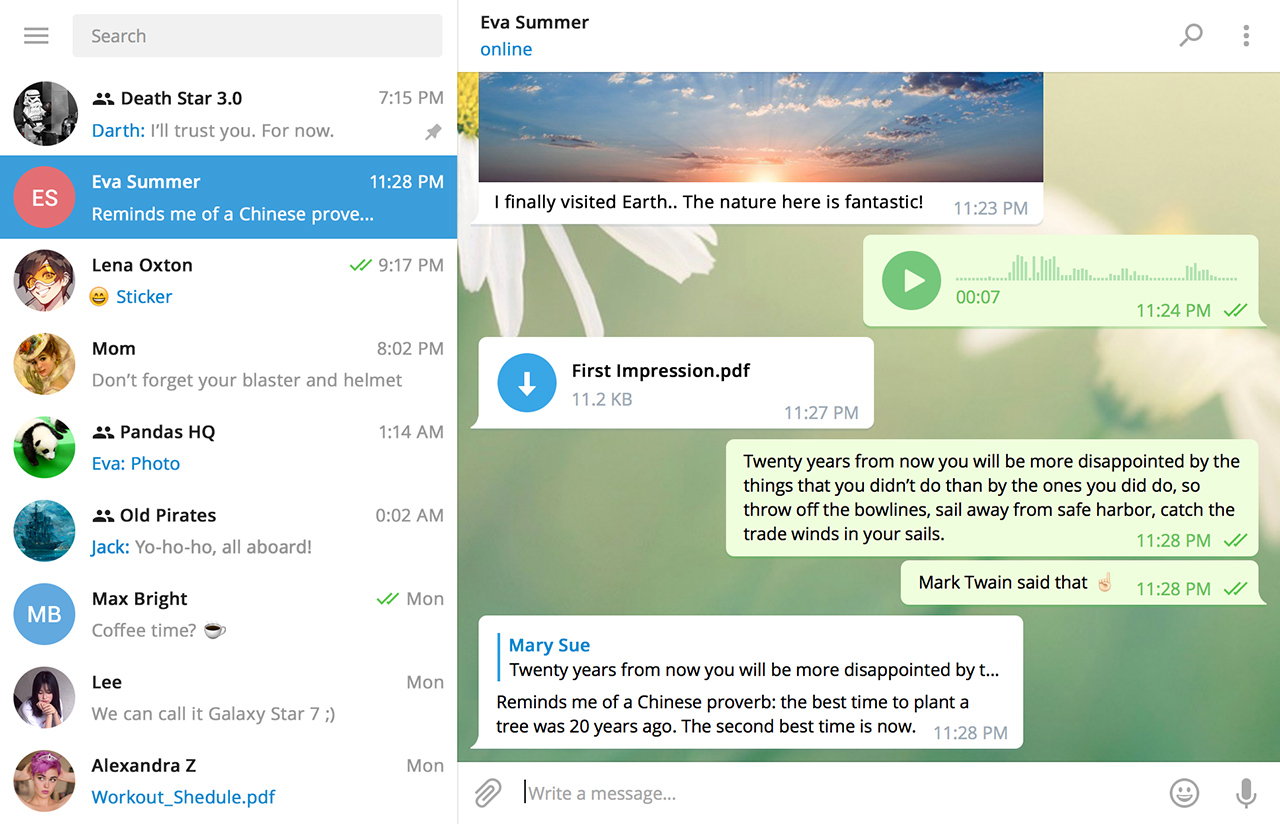
Image source: telegram.org
Setting up a desktop messaging client should be straightforward, but depending on your operating system, hardware age, and privacy needs, the standard installation path might not be the ideal choice. Telegram ranks among the top messaging platforms globally, boasting over 500 million active users. Its desktop client is highly regarded for its speed, local caching capabilities, and seamless cross-platform synchronization.
This comprehensive guide covers everything from locating the correct official download links to troubleshooting complex display errors on Linux and finding legacy versions for older Windows machines. Whether you are setting up a new work computer or trying to log in without your smartphone handy, the following sections provide actionable solutions.
Where to Download the Official Telegram Desktop App
The first and most critical step in setting up your communication environment is sourcing the application safely. Because Telegram is open-source, numerous third-party sites host modified versions of the client. To avoid malware or compromised builds, you should only download the software from official channels.
Direct Download Links and App Stores
For the vast majority of users on modern operating systems, the most direct route is the Official Telegram Desktop Portal. The website automatically detects your operating system and offers the appropriate installer for Windows (x64), macOS (Intel or Apple Silicon), or Linux.
Alternatively, many users prefer to manage their software through OS-level package managers to ensure background updates are handled automatically. You can find the official, verified application in these storefronts:
- Windows Users: The Microsoft Store version provides seamless background updates and integrates cleanly with Windows 10 and 11 notification centers.
- Mac Users: The Mac App Store offers a native version optimized for macOS, though power users sometimes prefer the direct download for faster access to beta features.
Navigating the Linux Ecosystem
Linux users face a more fragmented installation landscape. While Telegram provides a static binary on their website that runs on almost any distribution, many users prefer integrated package managers. According to official documentation, you have three primary options:
- Snapcraft: The official Snap package is maintained directly by Telegram developers and offers a sandboxed environment.
- Flatpak: Available via Flathub, this is a popular alternative for distributions like Fedora or Linux Mint that favor Flatpak over Snap.
- Static Binary: Downloaded as a `.tar.xz` file from the official site, this requires no installation—simply extract and run the executable. This is often the most reliable fallback if package managers fail.
How to Log In to Telegram Desktop Using Your Phone or SMS
Telegram's security model requires a phone number to create an account, but the method you use to log into the desktop client can vary based on your situation.
The Standard QR Code Method
The default and most secure way to log in is by linking your desktop to an already active smartphone session. This method uses a cryptographic handshake to verify your identity without transmitting SMS codes, which can be intercepted.
- Launch the Telegram Desktop application. A large QR code will appear on the screen.
- Open the Telegram app on your smartphone.
- Navigate to Settings (the gear icon).
- Tap on Devices, then select Link Desktop Device.
- Point your phone's camera at the computer screen to scan the code. The desktop app will instantly log in and sync your chat history.
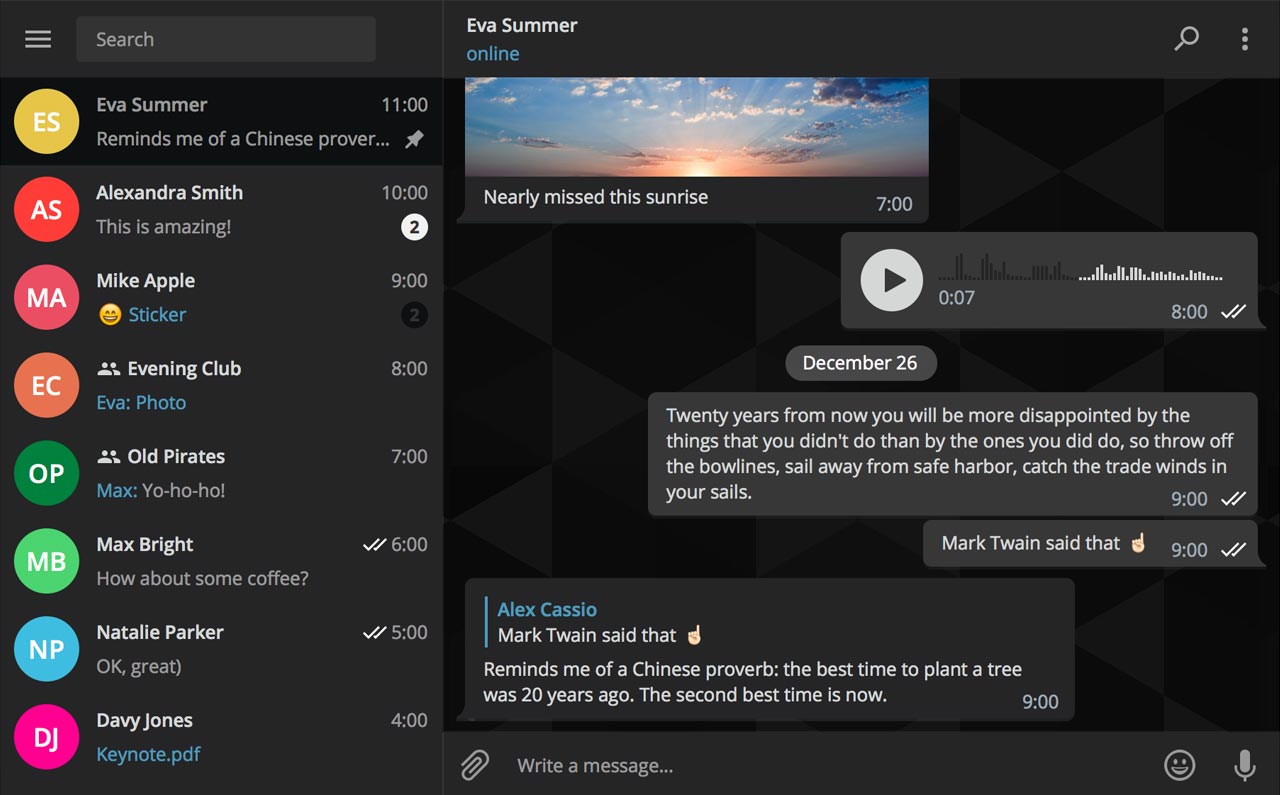
Image source: telegram.org
The "No-Smartphone" SMS Workaround
A common point of confusion is whether you can use Telegram Desktop if your phone is lost, broken, or if you are using a VoIP number that cannot run the mobile app. While the standard Windows installer heavily pushes the QR code method, there is a known workaround.
According to documentation from Uptodown's Portable Guide, using the Portable Version of Telegram Desktop often provides more flexibility with login methods. If you wait on the QR code screen or click the alternative login options, you can trigger a "Log in using your phone number" prompt. This will send a standard SMS text message containing a 5-digit login code to your registered phone number, bypassing the need for a smartphone camera entirely.
If you are setting up Telegram on a secondary device and do not have your primary smartphone available, download the Portable version. It is more likely to offer the SMS fallback option than the Microsoft Store version.
Which Version of Telegram Desktop Should You Choose?
Users are often surprised to learn that there are multiple ways to access Telegram on a computer, each with distinct advantages and limitations. Choosing the right version depends on your hardware capabilities and administrative privileges.
| Feature / Capability | Standard Desktop App | Telegram Web (K/Z) | Portable Version |
|---|---|---|---|
| Installation Required | Yes (Admin rights usually needed) | No (Runs in browser) | No (Runs from folder/USB) |
| Multi-Account Support | Yes (Up to 3 accounts) | Limited (Depends on browser profiles) | Yes |
| Folder Support | Full Support | Full Support | Full Support |
| Secret Chats | Not Supported | Not Supported | Not Supported |
| Performance | High (Hardware Accelerated) | Moderate (Browser Dependent) | High (Hardware Accelerated) |
Why You Might Prefer the Portable Version
The Portable version is an exceptionally strong option for users operating in restricted environments, such as corporate offices or university computer labs. Because it does not write data to the Windows Registry or require administrator credentials to install, you can run it directly from a USB flash drive. All cache files and session data are stored locally within the application's folder, making it easy to delete your footprint when you are finished.
Understanding the Absence of Secret Chats
A frequent question among new users is why "Secret Chats" (Telegram's end-to-end encrypted chat feature) are missing from the desktop client. As noted in the SourceForge project documentation, Secret Chats are tied to the specific physical device where they were created. Because desktop operating systems handle local file encryption differently than sandboxed mobile OS environments (like iOS and Android), the developers opted to exclude Secret Chats from the desktop client to prevent potential local data extraction vulnerabilities.
How to Install Telegram on Older Windows and Mac Systems
While official documentation generally states that Telegram requires Windows 10 or newer, many users worldwide still rely on legacy hardware. As the application's underlying framework (Qt) updates over time, support for older operating systems is inevitably dropped. However, because Telegram is open-source, older compiled versions remain available.
If you are trying to install the application on an older machine, downloading the latest installer will result in an immediate crash or an "incompatible operating system" error. Instead, you must download specific legacy builds sourced from the official tdesktop GitHub repository.
- Windows XP and Windows Vista
- You must use Version 1.8.15. This is the final stable release compiled before the Qt framework dropped support for these operating systems. Note that some modern features like animated reactions will not render correctly.
- Windows 7 and Windows 8
- While some newer builds may technically launch, Version 4.9.9 is widely regarded as the most stable release for the Windows 7 architecture, avoiding the graphical glitches common in version 5.x updates.
- macOS 10.6 (Snow Leopard) to 10.9 (Mavericks)
- Apple users on these vintage systems should download Version 1.8.15.
- macOS 10.10 (Yosemite) to 10.11 (El Capitan)
- Upgrade your client to Version 2.4.4 for the best balance of features and stability.
Important: Once you install a legacy version, immediately navigate to Settings > Advanced and disable "Install updates automatically." If you leave this enabled, the app will attempt to download a newer, incompatible version and break itself upon the next restart.
How to Fix Common Telegram Desktop Problems and Errors
Even with a clean installation, users occasionally encounter technical hurdles. Most of these issues stem from graphical rendering conflicts or network synchronization errors rather than the application itself.
What to Do if the QR Code Won't Load
If you open the application and the QR code area remains a spinning loading circle or a blank white square, the client is failing to establish a secure handshake with Telegram's servers. This is almost always caused by one of two things:
- System Time Desync: MTProto encryption requires your computer's clock to be highly accurate. If your system time is off by even a few minutes, the server will reject the connection. Go to your OS settings and force a sync with a global time server (NTP).
- VPN/Firewall Interference: Certain corporate firewalls or strict VPN protocols block the specific ports Telegram uses. Temporarily disable your VPN to see if the QR code generates.
The OpenGL "Black Screen" Fix
A well-documented issue on older Windows machines and certain Linux distributions is the app launching to a completely black or transparent window. This occurs when the application attempts to use OpenGL hardware acceleration, but the system's graphics drivers fail to render it.
The community has discovered a reliable workaround known as the "Three-Launch Trick." If you force-close the application and attempt to open it three times in rapid succession, the application's crash-detection system will trigger. On the third or fourth launch, a safe-mode prompt will appear asking if you want to disable OpenGL rendering. Click "Yes," and the application will launch normally using software rendering.
Solving Linux Display and Wayland Bugs
Linux users, particularly those on Ubuntu or Fedora, frequently report UI scaling issues, invisible cursors, or crashing when using the Snap version of Telegram. According to discussions on the Zorin OS Forums, this is often a conflict between the modern Wayland display server and the sandboxed Snap environment.
If you experience graphical glitches on Linux, the most effective solution is to uninstall the Snap package (`sudo snap remove telegram-desktop`) and download the static binary directly from the Telegram website. Running the static binary bypasses the sandbox restrictions and interfaces more cleanly with Wayland.
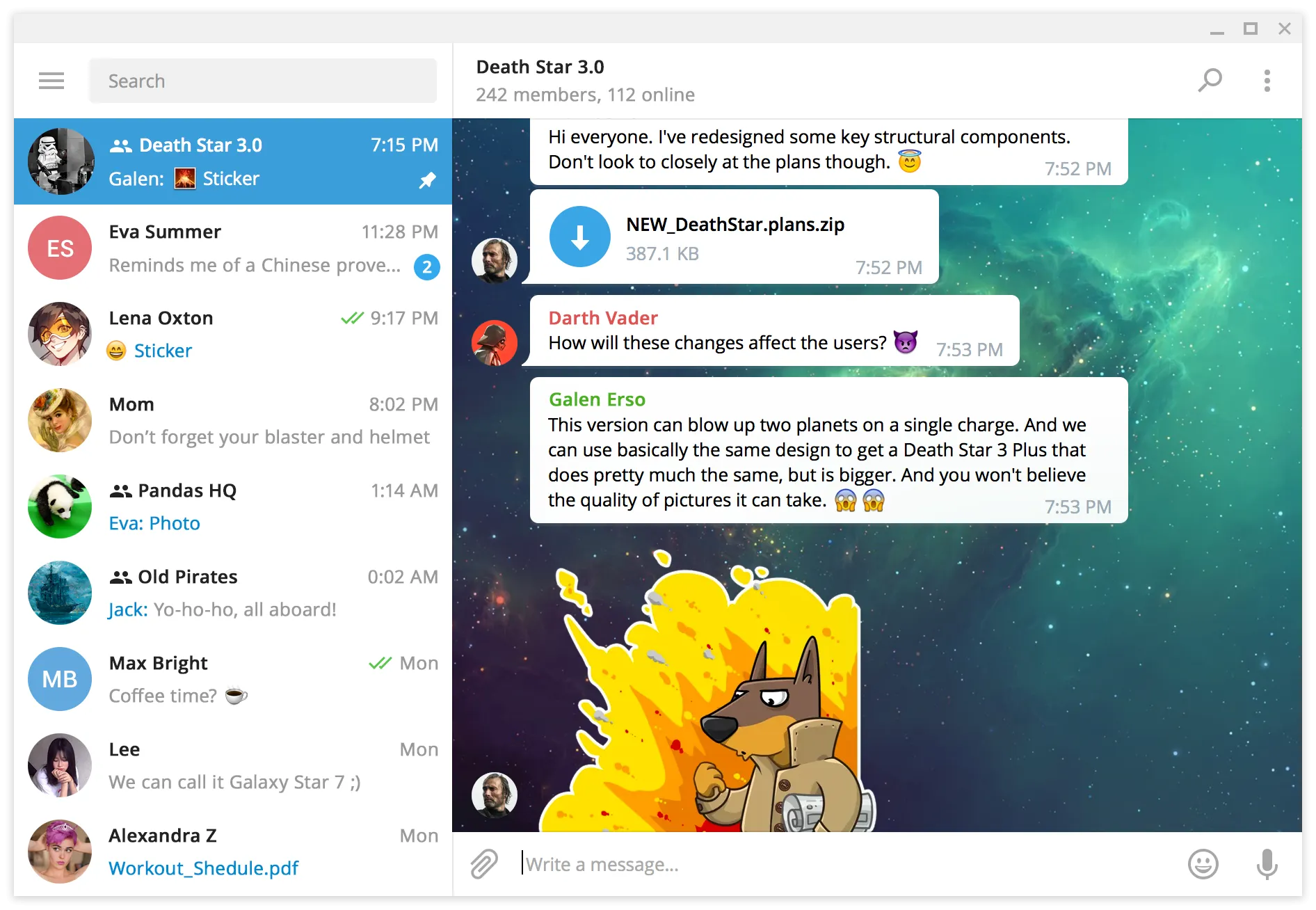
Image source: Flathub
Advanced Settings to Boost Performance and Privacy
Once your client is running smoothly, navigating to the Settings > Advanced menu unlocks several powerful tools to optimize how the application utilizes your computer's resources.
Enabling Hardware Acceleration
By default, Telegram attempts to balance performance and compatibility. However, if you frequently participate in large group video calls or watch high-definition video files within the app, you should ensure that Hardware Accelerated Video Decoding is enabled. As demonstrated in various performance tutorials, offloading video processing from your CPU to your dedicated graphics card significantly reduces system heat and battery drain on laptops.
Managing Local Storage
Unlike WhatsApp, which relies heavily on your phone's storage, Telegram is cloud-based. However, the desktop client caches images, videos, and documents locally to make scrolling faster. Over time, this cache can consume gigabytes of hard drive space.
To prevent this, go to Settings > Advanced > Manage Local Storage. Here, you can set a strict storage limit (e.g., 2 GB) and configure the app to automatically clear media files older than a specific timeframe (e.g., 1 month). The files remain safe in the cloud and can be re-downloaded anytime, but your local disk space remains free.
Remote Security Management
If you use Telegram on a work computer or a public terminal, forgetting to log out is a major security risk. Fortunately, Telegram's architecture allows you to manage active sessions remotely. If you walk away from a computer while logged in, you can terminate that session from your smartphone.
Open the mobile app, go to Settings > Devices, and you will see a list of every computer currently logged into your account. Tap the specific desktop session and select Terminate Session. The desktop client will immediately log out and wipe the local cache, securing your data.
Frequently Asked Questions
Can I use Telegram on PC without a phone?
You must have a valid phone number to create and verify a Telegram account. However, you do not strictly need a smartphone with the app installed to log in on a PC. By using the Portable version of the desktop client, you can often trigger an SMS verification option, allowing you to receive the login code via a standard text message on a basic mobile phone.
Is Telegram Desktop safe to use?
Yes, the official client is highly secure. It utilizes Telegram's custom MTProto encryption protocol (combining 256-bit symmetric AES and 2048-bit RSA encryption) to secure data between your computer and the servers. Furthermore, the desktop client is open-source, meaning independent security researchers can verify that the code contains no hidden backdoors.
How do I stop Telegram from starting automatically on Windows?
By default, the installer configures the app to launch when you turn on your computer. To disable this, open Telegram, click the hamburger menu (three lines) in the top left, go to Settings > Advanced > System Integration, and toggle off the switch labeled "Launch Telegram when system starts."
Can I run multiple Telegram accounts on one PC?
Yes. The desktop application natively supports multiple accounts. Click the hamburger menu in the top left corner, click the small downward arrow next to your profile name, and select "Add Account." You can add up to three distinct accounts and switch between them seamlessly without logging out.
Why are my messages not syncing between my phone and PC?
Sync issues are typically caused by network connectivity problems or an outdated client. First, ensure both devices have an active internet connection. If the issue persists, check for updates in the desktop app (Settings > Advanced > Check for updates). If you are using a legacy version on an older OS, some newer message types (like specific animated stickers) may not sync or render properly.
Setting up Telegram Desktop correctly ensures a fast, secure, and resource-efficient messaging experience. By understanding the nuances of the different versions and settings, you can tailor the application to your specific hardware and privacy needs. Keep these key takeaways in mind:
- Always download from official sources (desktop.telegram.org or verified app stores) to avoid compromised software clones.
- Use the Portable version if you are working on a restricted corporate machine or need to log in via SMS rather than a QR code.
- Match your version to your OS. If you are on Windows 7 or older macOS versions, seek out the specific legacy builds (like 1.8.15 or 4.9.9) from the official GitHub repository.
- Configure local storage limits in the Advanced Settings to prevent the application's media cache from filling up your hard drive over time.
- Monitor your active sessions regularly via your smartphone's "Devices" menu to ensure no unauthorized computers have access to your account.