How to Find and Manage the Privacy Settings on Your Phone to Protect Your Data
Mobile devices hold our most sensitive personal information, from real-time location data and financial records to private conversations. As operating systems evolve, the challenge for users is no longer just finding where the privacy toggles are hidden—it is understanding which settings to restrict without breaking the core functionality of the device.
If you only have 60 seconds, check these critical areas first:
- Location Services: Change apps from "Always" to "While Using."
- Microphone/Camera: Revoke access for any app that doesn't strictly need it (e.g., a calculator app).
- Ad Tracking: Disable "Personalized Ads" in your main OS settings.
- Background Refresh: Turn off background data for apps you rarely open.
- Auto-Delete: Enable automatic data purging for your linked cloud accounts.
Where Are the Privacy Settings on an iPhone?
Apple has consolidated its security features into a centralized hub, making it relatively straightforward to audit what your device is sharing. However, understanding the depth of these tools is essential for maintaining a secure digital footprint.
Navigating the Privacy and Security Menu
To access the main dashboard on iOS, open the Settings app and scroll down to Privacy & Security. This menu is organized by hardware components and data types rather than by individual apps. You will see categories like Location Services, Contacts, Calendars, Bluetooth, and Microphone. Tapping into any of these categories reveals a list of every app that has requested access to that specific data point.
According to Apple's official privacy control documentation, users should regularly review this list. If you see a game or a flashlight app requesting access to your Contacts or Local Network, you can toggle the switch off immediately without affecting the app's primary function.
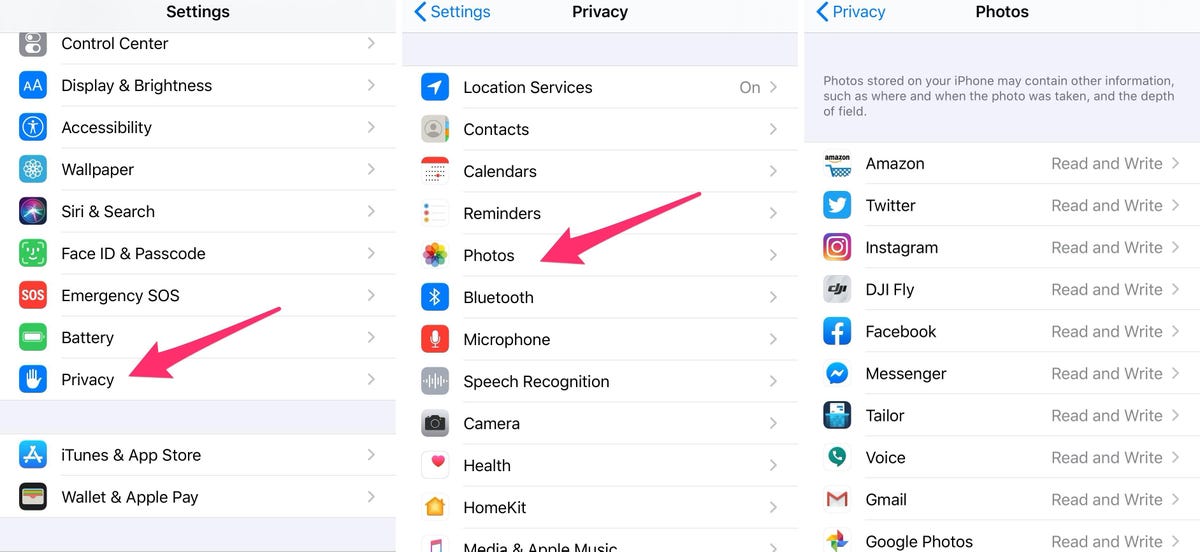
Image source: CNET
How to Use the App Privacy Report to Spot Data Hungry Apps
One of the most revealing features in modern iOS versions is the App Privacy Report. Found at the very bottom of the Privacy & Security menu, this tool must be manually enabled. Once turned on, it acts as a background auditor, recording exactly how often apps access your location, photos, camera, and microphone over a seven-day period.
More importantly, it provides a "Network Activity" log. This shows you the specific third-party domains an app is contacting behind the scenes. If a simple weather app is pinging dozens of advertising trackers or data brokers every hour, the App Privacy Report will expose this behavior, allowing you to make an informed decision about whether to keep the app installed.
Protecting Your Physical Safety with the iOS Safety Check
For users in sensitive situations, such as those experiencing domestic abuse or stalking, iOS includes a feature called Safety Check. Located within the Privacy & Security menu, this tool provides an "Emergency Reset" option. With a single tap, it immediately revokes all location access from people and apps, resets system privacy permissions, and signs out of iCloud on all other devices. It is a highly effective tool for instantly securing a compromised digital identity.
How to Navigate Android Privacy Menus Across Different Brands
Managing privacy on Android can be slightly more complex due to "fragmentation"—the reality that different manufacturers (like Samsung, Google, and Motorola) customize the operating system interface. However, the core security architecture remains consistent across modern devices.
Finding the Privacy Dashboard on Google Pixel and Stock Android
If you are using a Google Pixel or a device running a "stock" version of Android 13 or newer, the process is streamlined. Navigate to Settings > Security & Privacy. Here, you will find the Privacy Dashboard.
The official Android privacy dashboard provides a visual timeline of permission usage. It displays a pie chart showing exactly which apps accessed your location, camera, and microphone over the past 24 hours. If you notice an app accessing your microphone at 3:00 AM while you were asleep, you can tap directly on that entry in the timeline to revoke its permission.
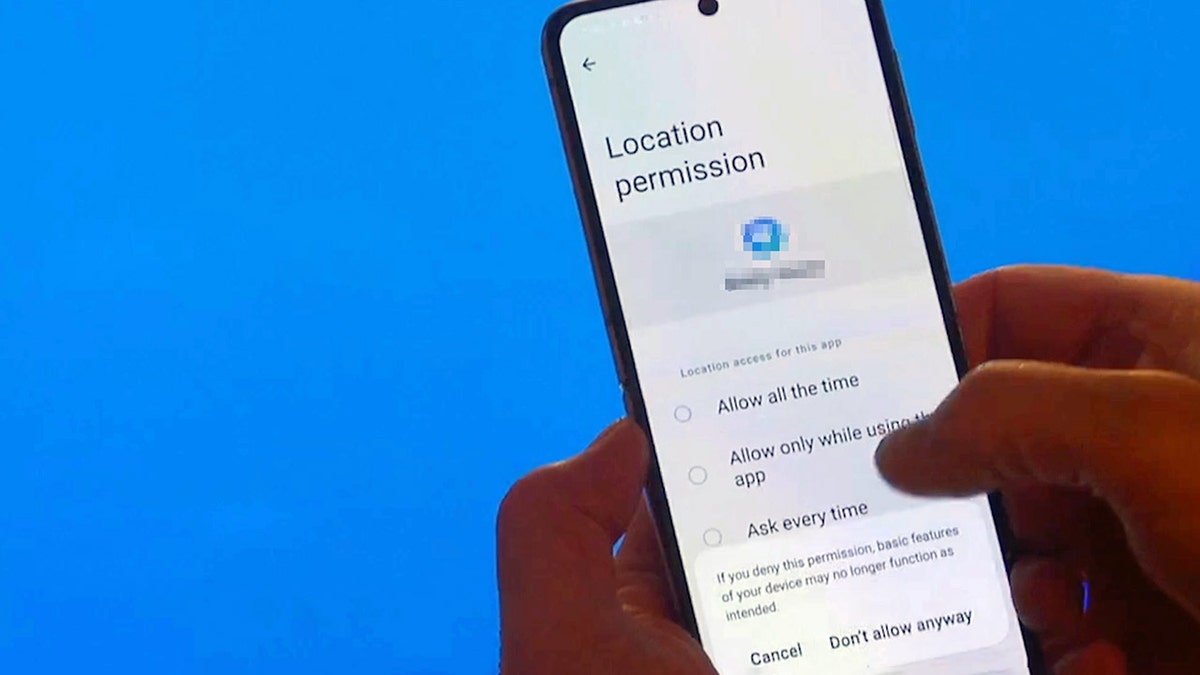
Image source: Fox News
Locating Privacy Settings on Samsung Galaxy Devices
Samsung devices utilize the OneUI interface, which categorizes settings slightly differently. To find your permission manager on a Galaxy phone, you typically need to navigate to Settings > Security and Privacy > More Privacy Settings > Permission Manager.
Despite the different path, the functionality is largely the same. The Permission Manager groups access by category (Body Sensors, Calendar, Call Logs, etc.). Samsung also includes specific toggles to block system-wide camera and microphone access instantly, which is useful for meetings or highly sensitive environments.
Enabling Secure Startup and Device Encryption
Beyond app permissions, physical device security is a critical component of mobile privacy. According to Google's Android security guidelines, modern devices are encrypted by default. However, some manufacturers offer a "Secure Startup" feature (often found under Lock Screen and Security settings). When enabled, the phone requires your PIN or password before the operating system even fully boots up. This ensures that if the device is stolen and powered off, the data remains heavily encrypted and inaccessible to external extraction tools.
How to Audit App Permissions for Maximum Security
Turning off all permissions will render a smartphone nearly useless. The goal is to practice the principle of least privilege—giving apps only the exact permissions they need to function, and nothing more.
Managing Access to Your Camera and Microphone
Both iOS and Android now feature hardware indicators to prevent stealth recording. When an app accesses your microphone, an orange dot appears in the top corner of your screen; when the camera is active, a green dot appears. If you see these indicators when you are not actively recording a voice note or taking a photo, an app is listening or watching in the background.
To audit this, go to your respective permission manager and review the Camera and Microphone lists. A video conferencing app needs this access; a mobile game or a recipe app does not. Revoke access for any app that cannot justify its need for your hardware.
Controlling Location Services Without Breaking Your Apps
Location data is highly valuable to data brokers. When managing location services, you generally have three options: "Always," "While Using the App," and "Never."
A widely recommended rule of thumb from security experts at ZDNet is to never grant "Always" access to casual apps. "While Using the App" is the optimal setting for ride-sharing or navigation apps, ensuring they can find you when you need a ride, but cannot track your movements once you close the application. Furthermore, both platforms now offer a "Precise Location" toggle. You can turn this off for apps like local news or weather, which only need to know your general city, not your exact street address.
If you haven't opened an app in the last 24 hours, it generally has no legitimate reason to track your background location. Audit your "Always Allow" list monthly and downgrade unused apps to "While Using."
Why You Should Audit Your Clipboard and Pasteboard Permissions
A frequently overlooked privacy vulnerability is the device clipboard. When you copy a password from your password manager or a two-factor authentication code from a text message, that data sits in your clipboard. Historically, any open app could read this data silently.
Modern operating systems now notify you when an app pastes from the clipboard. If you open a social media app and see a notification that it "pasted from Messages," it is snooping on your copied text. You should navigate to your privacy settings and explicitly deny clipboard access to apps that do not require text input.
Should You Disable This Setting? A Decision Framework
The most common frustration with mobile privacy is the trade-off between security and convenience. Disabling a setting to stop tracking often breaks a feature you rely on. Use this framework to decide what to toggle.
| Setting | Privacy Gain | Functionality Loss | Recommendation |
|---|---|---|---|
| Significant Locations / Location History | Stops the OS from mapping your daily routines and frequent destinations. | Breaks "Time to Leave" traffic alerts and smart home "Arriving Home" triggers. | Disable if you don't use smart home geofencing; otherwise, rely on Auto-Delete. |
| Precise Location | Prevents apps from knowing your exact street address or building. | Ride-sharing apps may pick you up at the wrong spot; delivery apps may struggle. | Disable for Weather/News; Keep enabled for Uber/Lyft/Maps. |
| Background App Refresh | Stops apps from silently connecting to servers and sending data while closed. | Messages may delay; podcasts won't auto-download; widgets may show stale data. | Disable for social media and games; Keep enabled for messaging and email. |
| Local Network Access | Stops apps from scanning your home Wi-Fi for other connected devices. | Cannot cast video to a smart TV; cannot connect to wireless printers. | Disable for everything except streaming apps and smart home controllers. |
Recommended Privacy Profiles for Every Type of User
Because everyone has a different risk tolerance, there is no single "correct" configuration. Consider adopting one of these three privacy profiles based on your lifestyle.
Standard The Balanced Profile for Most Users
This profile is designed to stop aggressive third-party tracking without causing daily friction. In this setup, users enable "Ask App Not to Track" (iOS) or opt out of Ads Personalization (Android). Location services are strictly set to "While Using" for all apps except essential system tools. Background app refresh is disabled for social media, but left on for communication tools. This is a highly practical approach for the average smartphone owner.
Strict The High-Security Profile
For users handling sensitive corporate data or those with elevated privacy concerns, the strict profile prioritizes security over convenience. This involves disabling all biometric unlock methods (relying solely on a complex alphanumeric passcode), turning off all background app refresh, disabling Bluetooth when not actively in use, and utilizing a trusted VPN at all times. Location services are entirely disabled globally and only toggled on manually when navigation is required.
Family The Profile for Children and Seniors
This profile focuses on safety and preventing accidental data sharing or purchases. It involves heavily restricting the "Share My Location" feature to family members only, disabling the ability for apps to even ask for tracking permissions, and turning on "Sensitive Content Warnings" to automatically blur inappropriate imagery received via messages or file drops.
What to Do When Privacy Settings Break Your Favorite Apps
Aggressive privacy configurations can sometimes result in unexpected errors. Knowing how to troubleshoot these conflicts ensures you don't abandon your privacy efforts out of frustration.
Fixing "Cookies Disabled" Errors on Mobile Browsers
If you set your mobile browser (like Safari or Firefox) to block all cookies to prevent tracking, you may find that you cannot log into certain websites. Many sites use Single Sign-On (SSO) services (like "Log in with Google" or "Log in with Apple"), which rely on cross-site cookies to verify your identity.
According to community troubleshooting on the Firefox Support Forum, the solution is not to turn off privacy protections entirely. Instead, adjust your browser settings from "Strict" to "Standard," which blocks known third-party trackers but allows the essential session cookies required for secure logins to function.
Restoring Broken Smart Home Automations
If your smart thermostat no longer adjusts when you leave the house, or your smart lights don't turn on when you pull into the driveway, your privacy settings have likely blocked the geofencing feature. Smart home hub apps (like Apple Home, Google Home, or Philips Hue) require "Always" location access to trigger these background automations. You will need to selectively re-enable background location access specifically for your primary smart home controller app.
Managing App Tracking Transparency (ATT) Conflicts
On iOS, the App Tracking Transparency feature requires apps to ask permission before tracking your activity across other companies' apps and websites. If you select "Ask App Not to Track," the app is legally required to comply. However, some poorly coded or aggressive apps may refuse to load or display a persistent error screen if tracking is denied. In these cases, the most secure action is to access the service via your mobile web browser instead of the dedicated app, as browsers offer built-in tracker blocking that apps cannot override.
Advanced Privacy Audits Beyond the Basic Menus
Once you have mastered the basic toggles, you can implement advanced workflows to automate your privacy maintenance.
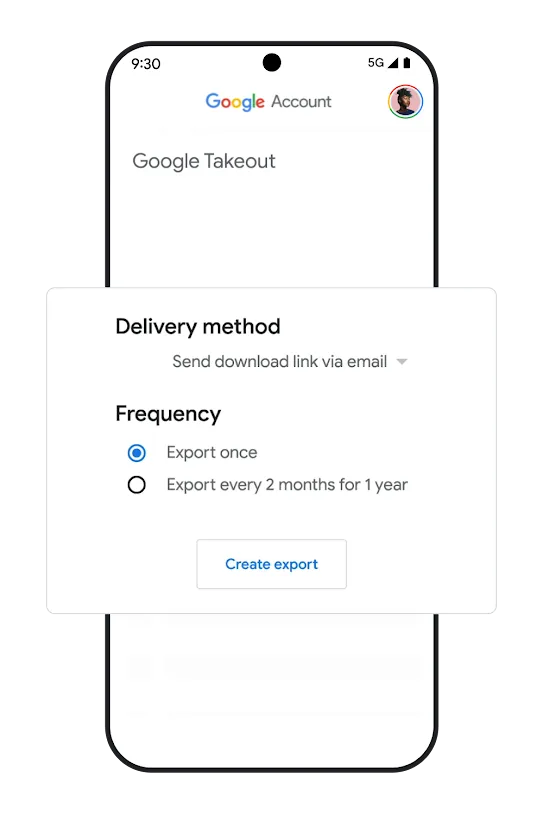
Image source: safety.google
Setting Up Google Auto-Delete Workflows
If you use Google services (Maps, YouTube, Search) on either Android or iOS, your data is stored in the cloud, meaning device-level settings won't clear your history. Through the Google Safety Centre, you can configure "Auto-Delete" workflows.
Using App Pinning to Protect Your Data from Friends
Handing your phone to a friend to show them a photo or let them make a call is a common privacy risk. Android offers a feature called "App Pinning" (often found under Advanced Security settings). When activated, you can "pin" a specific app to the screen. The user cannot exit that app, view your notifications, or access your home screen without entering your device passcode. iOS offers a similar feature called "Guided Access" under its Accessibility menu.
Managing Sensitive Content Warnings
Modern smartphones utilize on-device machine learning to protect users from unsolicited explicit material. On iOS, the "Sensitive Content Warning" feature scans incoming files via Messages, AirDrop, and FaceTime. If it detects nudity, it blurs the image before you see it, providing a prompt asking if you are sure you want to view it. Because this processing happens entirely on the device's local neural engine, Apple never sees the content of your messages, maintaining end-to-end encryption while enhancing personal safety.
Frequently Asked Questions
The Bottom Line on Mobile Privacy
Securing your mobile device is not a one-time event; it is an ongoing process of managing permissions as you install new applications and OS updates. By applying the principle of least privilege, you can significantly reduce your digital footprint without sacrificing the convenience of a smartphone.
- Check Location Services: Set all non-essential apps to "While Using."
- Audit Hardware: Revoke microphone and camera access for games and utilities.
- Enable Reports: Turn on the App Privacy Report (iOS) or review the Privacy Dashboard (Android).
- Automate Purges: Set up Google Auto-Delete for 3 or 18 months.
- Review Routines: Clear "Significant Locations" or "Location History" if unused.
- Encrypt Hardware: Ensure "Secure Startup" is enabled on Android devices.
- Monitor the Clipboard: Watch for notifications of apps pasting copied text.
- Prepare for Emergencies: Familiarize yourself with iOS Safety Check or Android lockdown modes.
- Stop Ad Tracking: Disable "Personalized Ads" at the OS level.
- Schedule Maintenance: Set a calendar reminder every 6 months for a privacy tune-up.