How to Get and Change Steam Startup Movies on PC and Steam Deck
If you are trying to change your Steam startup movie on a Windows PC and cannot find the Settings > Customization tab, it is because startup movies only play in Big Picture Mode. To access the menu and see your movies, you must click the monitor icon in the top right of the desktop client to enter Big Picture Mode first. On a Steam Deck, the menu is available by default in Gaming Mode under Settings.
Customizing the boot sequence has become a popular way for users to personalize their gaming hardware. Initially introduced as a feature exclusive to the Steam Deck, Valve eventually expanded support for startup movies to the desktop client, allowing players to swap out the standard logo animation for dynamic, game-themed, or community-created videos.
However, the implementation across different operating systems has caused significant confusion. Desktop users frequently report missing menus, while Steam Deck owners often look for ways to bypass the official storefront to use custom files. This article covers the exact steps to acquire, equip, and troubleshoot Steam startup movies across all supported platforms as of 2026.
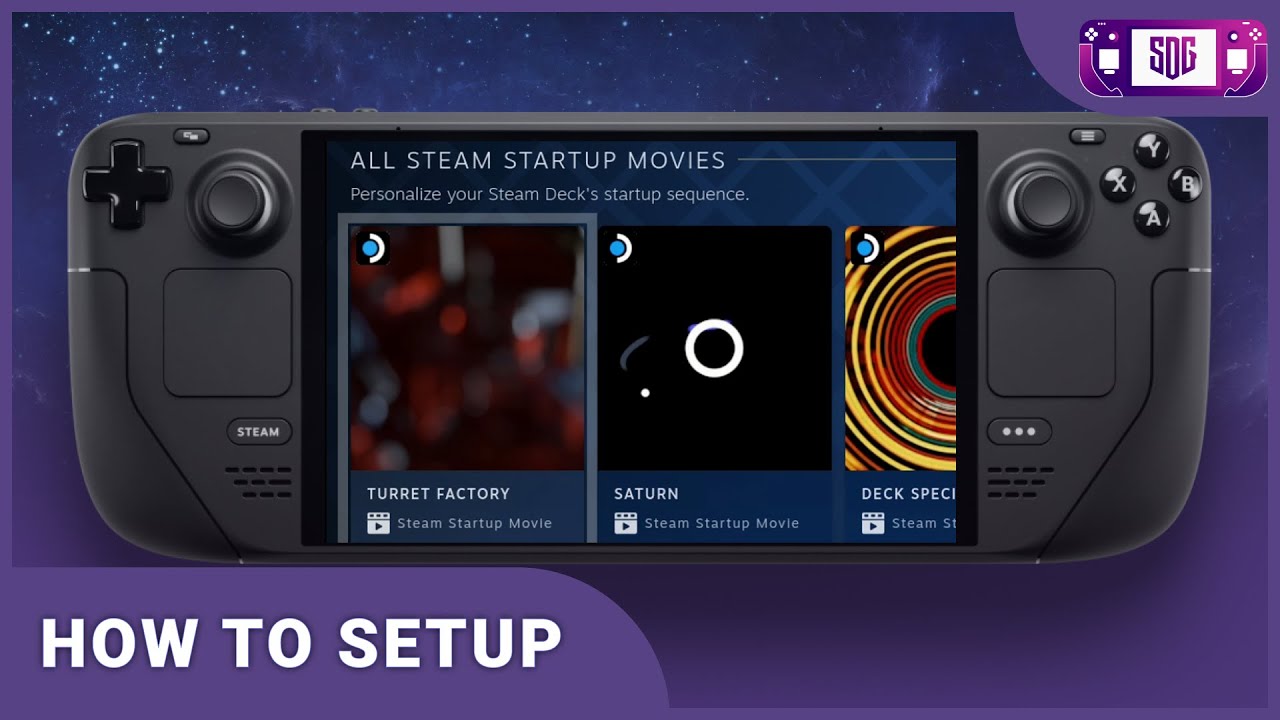
Image source: YouTube
What Are Steam Startup Movies and Where Do You Get Them?
Steam startup movies are brief video files (typically under 30 seconds) that play automatically when the Steam client launches, when a Steam Deck wakes from sleep, or when switching into Big Picture Mode. They serve as a digital boot screen, replacing the static Steam logo.
The primary, officially supported method for acquiring these animations is through the Steam Points Shop. Valve regularly updates this storefront with new animations, often tying them to major game releases or seasonal sales.
According to the official storefront, standard startup movies cost 3,000 Steam Points each. Steam Points are earned by purchasing games on the platform (typically 100 points per $1.00 USD spent). This means a single official startup movie requires roughly $30 worth of prior game purchases to unlock.
Recent additions to the Points Shop have included high-profile titles. For example, SteamDeckHQ reported on the addition of highly detailed startup videos for games like Hades 2 and Risk of Rain 2, which have proven popular among users looking for official, high-resolution animations.
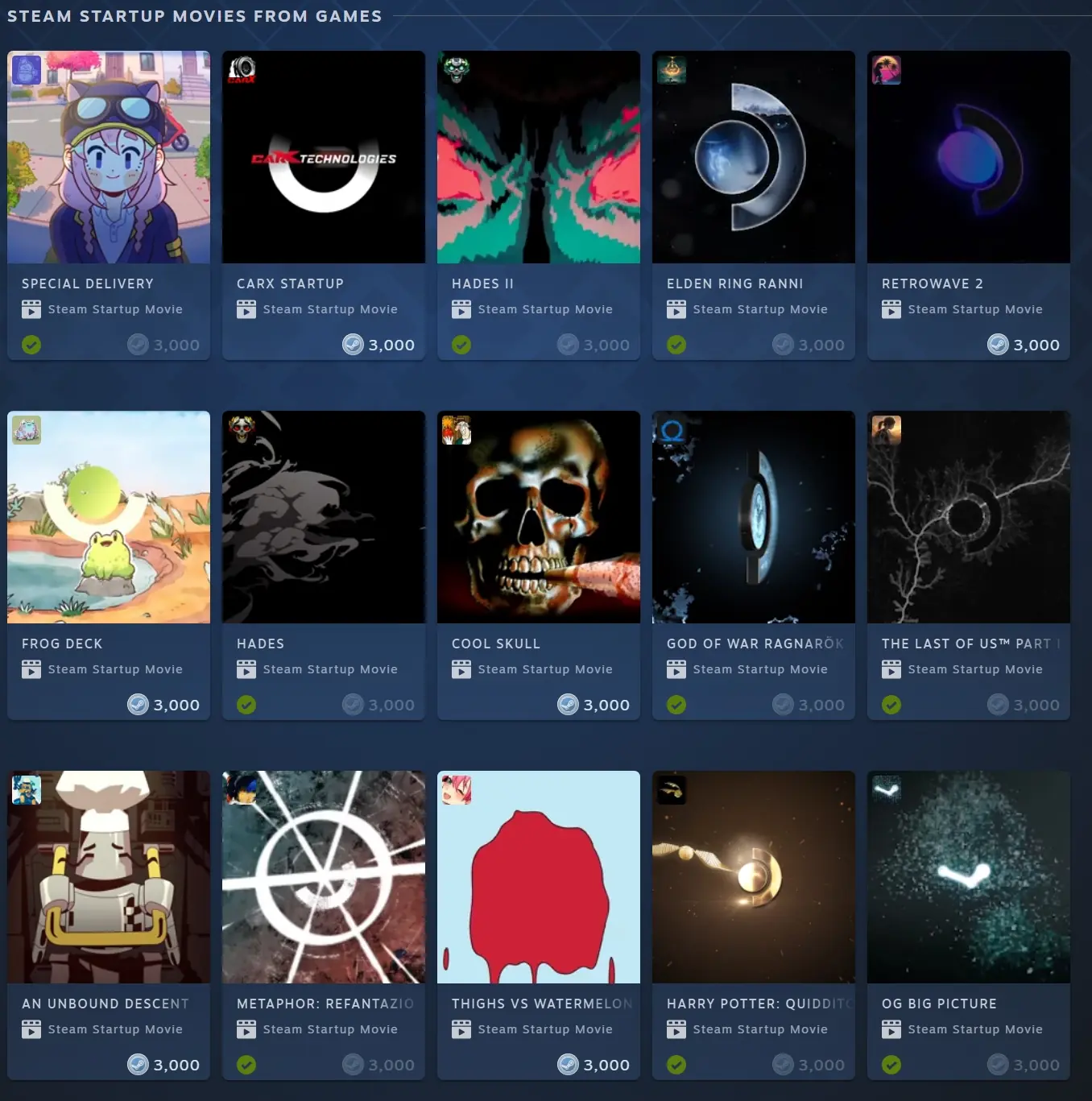
Image source: Steam Deck HQ
How to Equip Your Startup Movie on a Steam Deck
If you are using a Steam Deck, equipping a movie you have purchased from the Points Shop is a straightforward process built directly into the default Gaming Mode interface.
Press the physical "Steam" button on the left side of your device and navigate down to the "Settings" menu.
Scroll down the left-hand sidebar until you find the "Customization" tab. This menu handles keyboards, themes, and boot videos.
Under the "Startup Movie" section, you will see a dropdown menu containing the default movie and any movies you have purchased. Select your preferred video.
Valve also includes a Shuffle toggle in this menu. When enabled, the Steam Deck will randomly select a different movie from your library every time the device boots or wakes from sleep. This is a popular choice for users who have accumulated multiple animations and want variety.
Why Your Startup Movie Is Not Showing on PC and How to Fix It
The most common issue reported by desktop PC users is the complete absence of the "Customization" tab in their Steam settings. Community forums frequently highlight this frustration, as users purchase movies on their PC only to find no way to apply them.
The technical reason for this is that startup movies are tied to the gamepadui (the user interface designed for controllers). They do not play during a standard desktop client launch. Therefore, the settings to manage them are hidden unless you are actively using that interface.
To view, equip, or watch a startup movie on a Windows, Mac, or Linux desktop, you must be in Big Picture Mode. The standard desktop client does not support video boot sequences.
The Fix: Entering Big Picture Mode
To access the menu on a PC:
- Click the monitor icon located in the top-right corner of the Steam desktop client (next to your username) to enter Big Picture Mode.
- Once the new interface loads, click the Steam Menu icon in the bottom left (or press the Xbox/PlayStation button on your controller).
- Navigate to Settings > Customization.
- You will now see the Startup Movie dropdown menu.
The Power-User Shortcut (-gamepadui)
If you want your PC to always launch with the console-style interface and play your startup movie automatically, you can modify your Steam shortcut. Right-click your Steam desktop shortcut, select Properties, and add -gamepadui to the very end of the "Target" field (outside the quotation marks). Launching from this shortcut will force Steam directly into the modern Big Picture interface.
How to Install Custom Startup Movies for Free
While the Points Shop offers official options, the community has developed methods to use custom video files without spending Steam Points. Valve intentionally left the local file directory accessible, allowing users to override the default boot video with their own files.
The primary hub for finding these files is the Steam Deck Repo, a community-run website hosting thousands of free, user-created boot animations ranging from retro console mockups to cinematic edits.
- Costs 3,000 Steam Points
- Syncs to your Steam account
- Guaranteed to work perfectly
- Limited to official game themes
- Completely free
- Stored locally on the device
- Requires manual folder setup
- Unlimited variety (movies, memes, retro)
Manual Installation Path (Steam Deck)
To manually install a custom video downloaded from the Steam Deck Repo, you must switch your device to Desktop Mode and navigate the Linux file system.
- Hold the Power button and select Switch to Desktop.
- Open the Dolphin file manager.
- Click the hamburger menu (three lines) in the top right and check Show Hidden Files (or press Ctrl+H on an attached keyboard). This is required to see the
.steamfolder. - Navigate to this exact path:
/home/deck/.steam/root/config/ - Look for a folder named
uioverrides. If it does not exist, right-click and create it. - Inside
uioverrides, create another folder namedmovies. - Place your downloaded
.webmvideo file into themoviesfolder. - Critical Step: You must rename the video file to exactly
deck_startup.webm.
Once renamed, return to Gaming Mode. The system will automatically detect the override file and play it instead of the default animation.
Using Decky Loader to Automate Your Steam Deck Boot Videos
For users who frequently change their custom movies, manually navigating the desktop file system becomes tedious. The community consensus points to Decky Loader as a highly efficient alternative.
Decky Loader is a homebrew plugin framework for SteamOS. Once installed, it adds a plugin icon to the Quick Access Menu (the "..." button on the right side of the Deck). Within the Decky store, users can download a plugin called Animation Changer.
The Animation Changer plugin connects directly to the Steam Deck Repo API. This allows you to browse, preview, download, and apply custom startup movies entirely within Gaming Mode, using only the controller. The plugin automatically handles the creation of the uioverrides folder and the renaming of the files, significantly reducing the chance of user error.
How to Create Your Own Custom Steam Startup Movie
If you have video editing skills, you can create your own startup movies. However, the Steam client is strict about the file formats it will accept. If the specifications are incorrect, the video will skip, display a black screen, or crash the boot sequence.
| Requirement | Specification | Notes |
|---|---|---|
| File Format | .webm | Must use VP8 or VP9 codec. .mp4 (H.264) is not supported due to licensing. |
| Resolution | 1200x800 | Native 16:10 aspect ratio for Steam Deck. 1920x1080 works for PC. |
| Max Duration | ~30 Seconds | Longer videos may be cut off by the system loading sequence. |
| File Size | Under 30MB | Excessively large files can cause stuttering during playback. |
To convert a standard video into the correct format, tools like Handbrake or FFmpeg are recommended. For example, if you are using FFmpeg via the command line, a standard conversion command looks like this:
ffmpeg -i input_video.mp4 -c:v libvpx-vp9 -crf 30 -b:v 0 -c:a libopus output_video.webm
This command ensures the video uses the VP9 codec and Opus audio, which are natively supported by the SteamOS compositor.
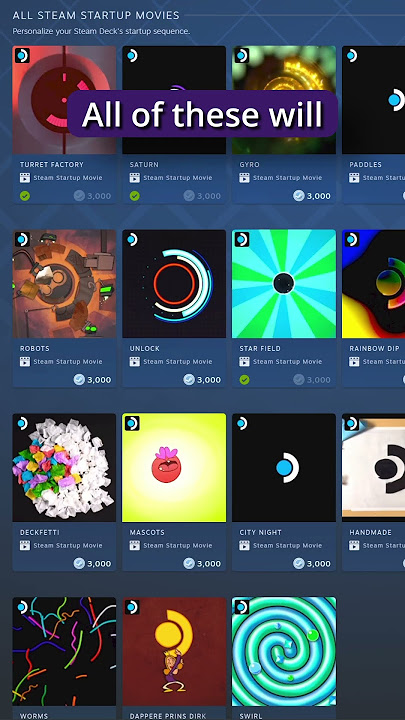
Image source: YouTube
10 Top Steam Startup Movies You Should Try Right Now
Whether you are browsing the Points Shop or the community repositories, the sheer volume of options can be overwhelming. Based on community downloads and visual fidelity, here are some of the most popular styles to look for:
- The PS2 Nostalgia: A community favorite that perfectly mimics the iconic PlayStation 2 boot sequence, replacing the Sony logo with the Steam logo.
- Hades 2 Official: A beautifully animated, high-resolution official movie featuring Melinoë, available in the Points Shop.
- The Valve Classic: A remastered, high-definition version of the original "guy with a valve in his eye" intro.
- Cyberpunk Glitch: A neon-soaked, high-energy intro that fits perfectly with the aesthetic of modern OLED screens.
- Minimalist Steam: A fast, clean, 3-second animation for users who want a customized look without delaying their boot time.
- Pip-Boy Boot: Inspired by the Fallout series, this green monochrome terminal sequence is a top-rated community download.
- GameCube Drop: Another retro classic, replacing the rolling purple cube with a Steam Deck icon.
- Elden Ring Official: A dramatic, orchestral intro available in the Points Shop for fans of FromSoftware.
- The Matrix Terminal: Cascading green code that resolves into the Steam logo.
- VHS Tracking: A retro-wave style video with intentional tracking lines and static, giving the boot sequence an analog feel.
Troubleshooting Common Startup Movie Issues
If your startup movie is not functioning as expected, consult this recommended practice checklist to identify the problem:
- Verify Big Picture Mode: If on PC, ensure you are launching Steam in Big Picture Mode. Videos will never play on the standard desktop client.
- Check the File Extension: Ensure your custom file is exactly
.webm. Renaming an.mp4file to.webmwithout actually converting the codec will result in a black screen. - Check the File Name: For manual overrides on Steam Deck, the file must be named
deck_startup.webm. Any typo will cause the system to ignore it. - Adjust Interface Volume: If the video plays but has no sound, check your Steam settings. Startup movie audio is tied to the "Interface Volume" slider, not the master game volume.
- Clear the Override Folder: If a corrupted custom video causes your Steam Deck to hang on a black screen during boot, switch to Desktop Mode and delete the
uioverridesfolder to force the system back to the default animation.
Frequently Asked Questions
uioverrides folder will be deleted if you uninstall the client or factory reset your Steam Deck.Final Thoughts
Customizing your Steam startup movie is an excellent way to personalize your gaming setup, whether you are using a handheld console or a desktop rig. By understanding how the file system and user interfaces interact, you can easily bypass common frustrations.
- Big Picture Mode is mandatory for viewing startup movies on a desktop PC.
- Official movies cost 3,000 points and are easily equipped via the Customization menu.
- Custom movies are free and must be placed in the
/home/deck/.steam/root/config/uioverrides/movies/directory. - Decky Loader ranks among the top methods for managing custom videos directly from Gaming Mode.
- Always use the .webm format when creating or downloading custom files to prevent playback errors.