How to Log In and Manage Your @live.com Email Account
If you created an email address ending in @live.com during the late 2000s, you hold a piece of internet history. While Microsoft no longer issues these addresses to new users, millions of people continue to rely on them for daily communication, banking, and personal business.
However, managing a legacy domain within a modern software ecosystem can occasionally cause confusion. Users frequently encounter unexpected redirects, storage limit warnings, and login conflicts when trying to access their inbox. This comprehensive resource explains exactly how to navigate the modern Microsoft infrastructure using your classic @live.com address, ensuring your account remains secure, active, and fully functional as of 2026.
Where Do I Go to Sign In to My @live.com Inbox?
The most common point of confusion for legacy users is simply finding the correct login page. Over the years, Microsoft has retired several portals, including the original Windows Live Mail interface. Today, there is a single, unified gateway for all Microsoft-owned email domains.
To access your inbox, you should navigate to the official Outlook sign-in page or type login.live.com directly into your browser's address bar. When you do this, you will notice that the URL automatically redirects to a page beginning with login.microsoftonline.com or outlook.live.com. This redirect is entirely normal and represents Microsoft's secure authentication routing.
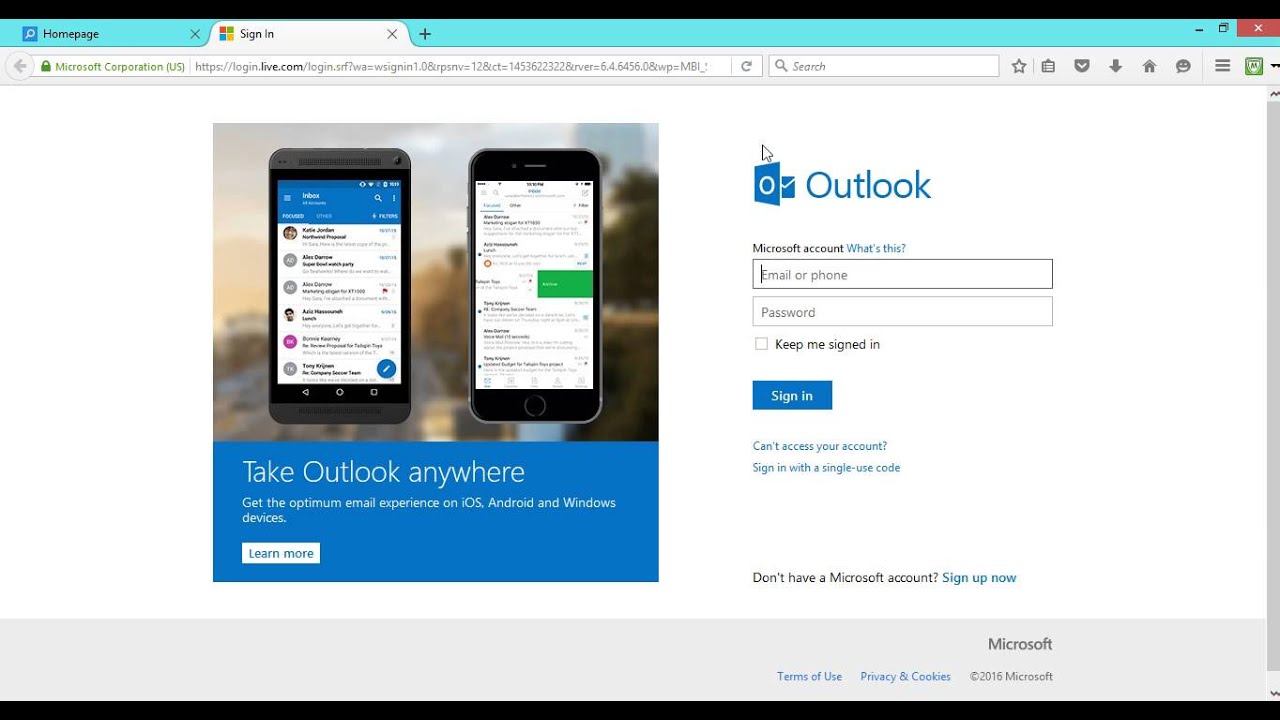
Image source: YouTube
It is important to note a critical technical requirement: the modern Microsoft login portal requires JavaScript to be enabled in your web browser. According to Microsoft's authentication documentation, users operating with strict script-blocking extensions (like NoScript) or highly restrictive corporate firewalls may find the login page appears blank or fails to load entirely. If you cannot get the password prompt to appear, temporarily disabling your script blocker for the live.com domain is usually the necessary fix.
Why Does My @live.com Email Now Look Like Outlook?
If you haven't logged into your account via a web browser in a while, you might be surprised to find that the interface is entirely branded as "Outlook." This is the result of a long-term consolidation strategy by Microsoft.
In the early 2010s, Microsoft began phasing out the "Hotmail" and "Windows Live" brands in favor of a unified Microsoft Outlook personal email experience. Your @live.com address was automatically migrated to this new backend infrastructure. This transition means that your legacy email address is now technically a full "Microsoft Account."
This integration provides several distinct advantages for @live.com users today:
- Single Sign-On: Your @live.com email and password serve as your login for Windows operating systems, Xbox Live networks, and Microsoft Office applications.
- Feature Parity: You receive the exact same interface updates, spam filtering, and organizational tools as someone who created a brand new @outlook.com address yesterday.
- AI Integration: As of recent updates, @live.com users who subscribe to Microsoft 365 Personal or Family plans can utilize Microsoft Copilot directly within their inbox to draft replies and summarize long email threads.
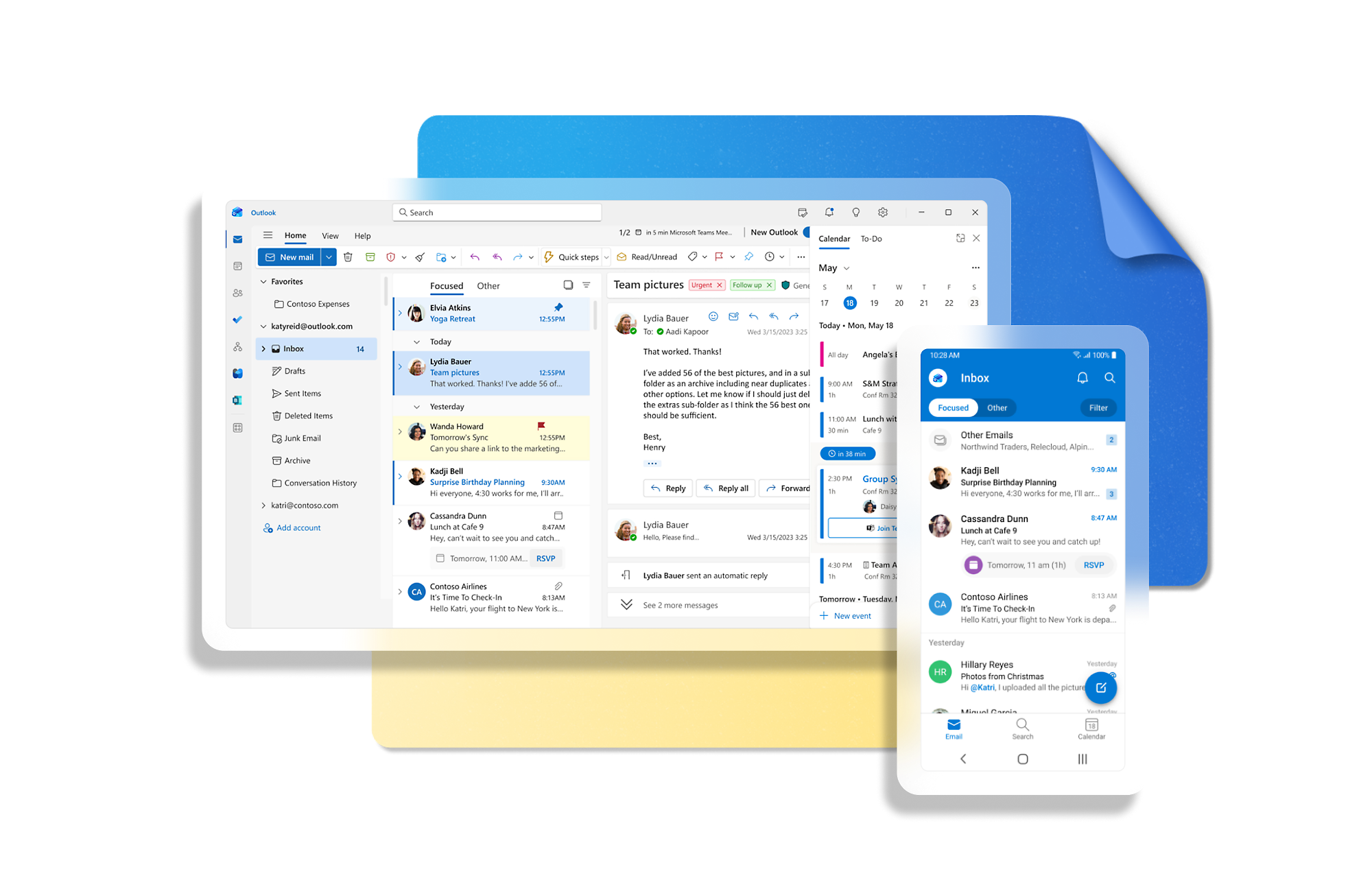
Image source: Microsoft
Can You Still Create a New @live.com Email Address?
A frequent question on technical forums comes from users who want to create a new @live.com address for a family member or business. The definitive answer is no. The @live.com domain is officially classified as a legacy domain Retired.
Microsoft ceased offering @live.com as an option for new account registrations several years ago. If you visit the standard Microsoft account creation page today, the system will only allow you to select from @outlook.com or @hotmail.com suffixes.
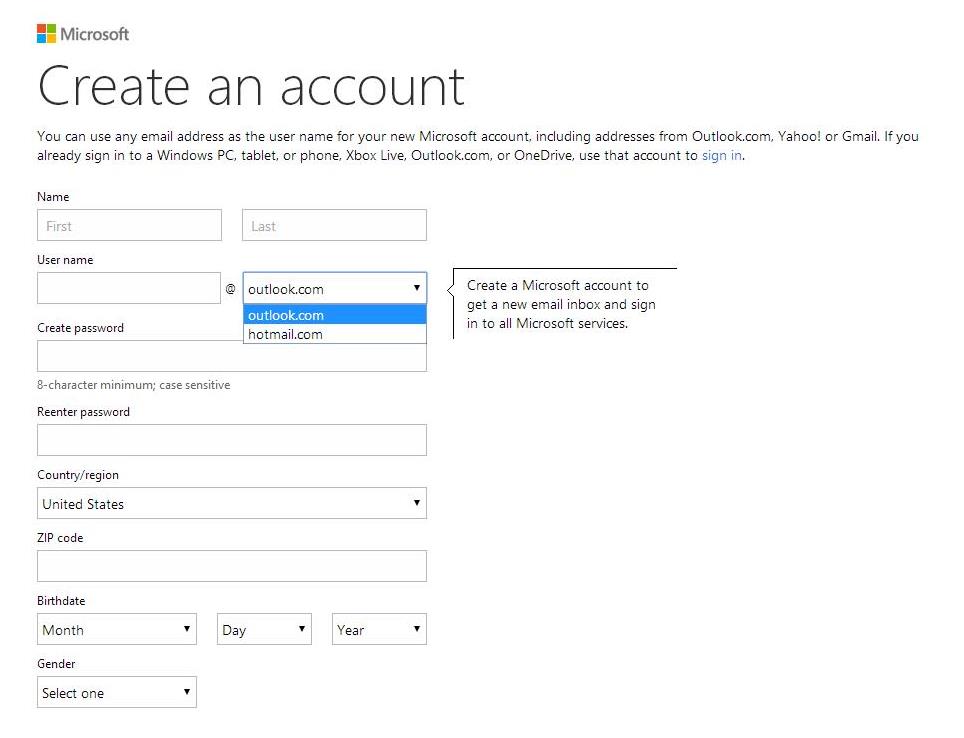
Image source: Microsoft Learn
The Alias Workaround for Existing Users
While you cannot create a brand new account with the domain, existing users have flexibility through the "Alias" system. If you currently have a @live.com address but want a more professional-sounding email for job applications, you do not need to abandon your old account.
You can log into your Microsoft Account settings and add a new @outlook.com alias to your existing @live.com inbox. Emails sent to either address will arrive in the exact same inbox, allowing you to maintain your legacy address for old contacts while using the modern address for new correspondence.
How to Set Up @live.com Email on iPhone and Android
Accessing your email on a mobile device is essential, but legacy domains sometimes require specific configurations. Microsoft strongly recommends downloading the official Microsoft Outlook app from the iOS App Store or Google Play Store. The official app automatically detects the correct server settings for @live.com addresses and supports modern authentication protocols out of the box.
However, if you prefer to use the native Apple Mail app or a third-party client like Thunderbird, you will need to configure the connection manually. Below are the current, verified server settings required to sync your account.
| Setting Type | Server Address | Port Number | Encryption Method |
|---|---|---|---|
| IMAP (Incoming) | outlook.office365.com | 993 | TLS / SSL |
| SMTP (Outgoing) | smtp.office365.com | 587 | STARTTLS |
| POP3 (Alternative) | outlook.office365.com | 995 | TLS / SSL |
Image source: MailJerry
A Note on App Passwords
If you have Two-Factor Authentication (2FA) enabled on your Microsoft account—which is highly recommended—older email clients that do not support modern OAuth2 login screens will repeatedly reject your password. In this scenario, you must log into your Microsoft Account security dashboard and generate a unique "App Password." You will enter this 16-character code into your phone's mail settings instead of your standard account password.
Why Is My @live.com Inbox Full Even With Few Emails?
One of the most frustrating issues @live.com users face is the "Account Frozen" or "Storage Full" warning, especially when their inbox appears mostly empty. This confusion stems from a recent policy change regarding how Microsoft calculates storage quotas across its ecosystem.
Your free Microsoft account actually has two separate storage limits that operate simultaneously:
- Microsoft Storage (5 GB Limit): This is your OneDrive cloud storage. Crucially, this quota includes all files saved in the cloud and all attachments sent or received in your @live.com email.
- Email Storage (15 GB Limit): This quota applies strictly to the text content of your emails and inline images.
Because the Microsoft Storage limit (5 GB) is much smaller than the Email Storage limit (15 GB), users frequently max out their OneDrive quota first. If someone sends you a few large video files, or if your phone automatically backs up photos to OneDrive, your 5 GB limit will fill up rapidly. When your Microsoft Storage is full, your @live.com email account is frozen. You will be unable to send or receive any new messages, even if you have plenty of room left in your 15 GB Email Storage quota.
To quickly unfreeze your account, log into Outlook.com, click the Settings gear icon, navigate to General > Storage, and click "Free up space" next to the Outlook Attachments section. Sorting your inbox by "Size" and deleting emails with large PDF or video attachments is the fastest way to restore service.
How to Fix the "Work or School Account" Login Conflict
Many @live.com users encounter a confusing prompt when trying to log in: a screen asking them to choose between a "Work or school account" and a "Personal account" that both display the exact same email address.
According to Microsoft's Home Realm Discovery (HRD) documentation, this conflict occurs when your personal @live.com address has been added to an organization's Azure Active Directory. This typically happens if you used your personal email to join a company's Microsoft Teams meeting, or if an employer invited your personal address to collaborate on a SharePoint document.
The system is now confused because the same email address exists in two different databases. To permanently resolve this login loop:
- Log into your Microsoft Account portal using the "Personal account" option.
- Navigate to the Your Info tab and select Edit account info.
- Click Add email to create a new @outlook.com alias.
- Select Make primary next to the newly created alias.
- Click Change sign-in preferences at the bottom of the page.
- Uncheck the box next to your @live.com address.
By removing sign-in permissions from the @live.com address, you force the system to stop asking which account you mean. You will now log in using the new @outlook.com alias, but all your emails will still arrive safely at your classic @live.com address.
What Is the na01.safelinks URL in My Emails?
If you subscribe to a premium Microsoft 365 plan, you may notice that when you hover over a link in an email, the URL looks incredibly long and begins with na01.safelinks.protection.outlook.com. Many users mistakenly believe their account has been hacked or that the email is a phishing attempt.
In reality, this is a premium security feature called Safelinks. When you receive an email, Microsoft's servers automatically wrap the original URL in a Safelinks redirect. When you click the link, Microsoft performs a split-second scan of the destination website. If the site has been flagged for malware or phishing since the email was sent, Microsoft blocks the connection and displays a red warning screen.
While this provides exceptionally strong protection against zero-day phishing attacks, some users find the long URLs visually unappealing or disruptive when copying and pasting links. If you wish to disable this feature, you can log into Outlook.com, navigate to Settings > Premium > Security, and toggle the "Advanced Security" options off.
Why Are People Getting Errors When Sending Email to Me?
Occasionally, you may stop receiving newsletters, password reset emails, or messages from specific contacts. When those senders try to email your @live.com address, they receive a bounce-back message containing the error code 550 SC-001.
As documented in various server administration communities, the 550 SC-001 error indicates that Microsoft's aggressive spam filters have blocked the sender's IP address. Microsoft maintains strict reputation requirements for any server attempting to deliver mail to @live.com, @hotmail.com, or @outlook.com addresses.
If a legitimate sender is receiving this error, the issue is entirely on their end, not yours. You cannot fix this by adding them to your Safe Senders list, because Microsoft's servers are rejecting the connection before the email ever reaches your personal inbox. The sender must verify their IP address against blocklists like Spamhaus and submit a delisting request through the Microsoft Sender Support portal.
How to Recover a Lost or Blocked @live.com Account
Because @live.com addresses are often quite old, users frequently encounter security blocks. Microsoft's automated systems monitor accounts for "unusual sign-in activity." If you attempt to log into your decade-old email from a new device, a hotel Wi-Fi network, or a different country, the system may temporarily lock the account to prevent unauthorized access.
If you are locked out and do not have access to your backup phone number or alternate email address, you must use the Microsoft Account Recovery Form. To improve your chances of passing the automated verification:
- Submit the form from a device and location (like your home Wi-Fi) where you have successfully logged in before.
- Provide exact subject lines of emails you have recently sent.
- List the exact email addresses of contacts you correspond with frequently.
- If you have ever used the account to purchase an Xbox game or Office subscription, provide the associated credit card details.
Finally, be aware of Microsoft's account inactivity policy. As of recent updates, if you do not log into your @live.com account at least once every two years, Microsoft reserves the right to permanently delete the account and purge all associated data. Because the domain is retired, once a @live.com address is deleted due to inactivity, it can never be recovered or recreated.
Frequently Asked Questions
Is the @live.com domain still active in 2026?
Yes. While Microsoft no longer allows new users to register @live.com email addresses, existing accounts remain fully active and supported. They operate on the modern Outlook infrastructure and receive all current security updates and features.
How do I change the password for my @live.com email?
Because your email is a Microsoft Account, you must change the password globally. Go to account.microsoft.com, log in, navigate to the "Security" tab, and select "Password security" to update your credentials.
What is the difference between Live.com, Hotmail, and Outlook?
Today, there is no functional difference. They are simply different domain names (suffixes) that all route to the exact same Microsoft email servers. An email sent from a @live.com address utilizes the same technology as one sent from an @outlook.com address.
Why can't I see my old emails from years ago?
If you haven't logged in for an extended period, Microsoft may have purged your inbox due to inactivity. Alternatively, check your "Archive" folder, or look in the "Deleted Items" folder and click "Recover items deleted from this folder" to see if the messages can be restored.
Can I use my @live.com address for business purposes?
While technically possible, it is generally considered a personal email address. You can use it to sign up for business tools like Microsoft Teams or Slack, but it will always be classified as a "Personal" Microsoft account rather than an enterprise Azure Active Directory account.
Final Thoughts
Managing a legacy @live.com email address in today's digital landscape is straightforward once you understand how it integrates with the broader Microsoft ecosystem. By treating your address as a modern Microsoft Account, you can ensure reliable access and robust security.
- Log in exclusively through the official outlook.com or login.live.com portals to avoid phishing attempts.
- Monitor your 5GB OneDrive storage limit carefully, as full cloud storage will freeze your ability to receive new emails.
- Utilize the official Microsoft Outlook mobile app for the most reliable connection and built-in Safelinks protection.
- Resolve login conflicts by adding an @outlook.com alias and adjusting your sign-in preferences.
- Maintain active recovery methods (like a secondary email or phone number) to prevent permanent lockouts due to unusual activity flags.