How to Switch Off the Pop Up Blocker on Your Browser and Phone
If you need to bypass a pop-up blocker immediately to print a document or access a banking portal, navigate to your browser's settings using these standard paths:
- Google Chrome: Settings > Privacy and security > Site Settings > Pop-ups and redirects.
- Microsoft Edge: Settings > Cookies and site permissions > Pop-ups and redirects.
- Apple Safari (Mac): Safari Menu > Settings > Websites > Pop-up Windows.
Tip: Look for a small icon (often a red 'X' or overlapping squares) in the far right of your address bar. Clicking this icon is often the fastest way to allow a blocked window without opening your settings menu.
Modern web browsers are designed to protect users from intrusive advertisements and potentially malicious scripts. By default, almost every major browser—including Google Chrome, Apple Safari, Microsoft Edge, and Mozilla Firefox—blocks new windows from opening automatically. While this security feature is highly effective at keeping your browsing experience clean, it frequently interferes with legitimate web applications.
Users commonly encounter this barrier when trying to download a bank statement, open a secure payment gateway, access school portals, or generate a PDF receipt for printing. In these scenarios, the browser's built-in protection mechanism cannot distinguish between a spam advertisement and a necessary document window.
Understanding how to navigate your browser's privacy settings allows you to temporarily or permanently bypass these restrictions. This comprehensive guide covers the exact steps required to switch off pop-up blockers across desktop and mobile platforms, while also addressing the deeper technical layers—such as operating system settings and third-party extensions—that often keep windows blocked even after you change your browser preferences.
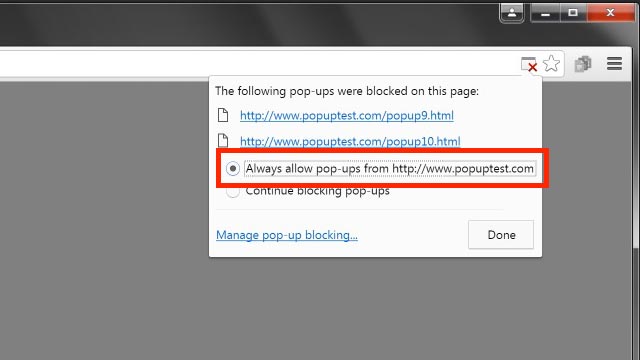
Image source: Pectora Support
How to Turn Off the Pop Up Blocker in Google Chrome
Google Chrome remains one of the most widely used browsers globally, and its approach to handling new windows is standardized across its desktop and mobile versions. Chrome relies on a centralized "Site Settings" menu to manage all permissions, including location access, camera usage, and window generation.
Quick Steps for Chrome on Desktop
If you are using Chrome on a Windows PC, Mac, or Chromebook, the process for disabling the blocker requires navigating through the privacy menu. According to official Google Help documentation, the default and recommended state is to keep these windows blocked. However, you can change this behavior globally.
To switch off the blocker entirely:
- Open Google Chrome and click the three vertical dots (More menu) in the top-right corner of the browser window.
- Select Settings from the dropdown menu.
- On the left-hand sidebar, click on Privacy and security.
- Select Site Settings from the main pane.
- Scroll down to the "Content" section and click on Pop-ups and redirects.
- Under the "Default behavior" heading, select the radio button next to Sites can send pop-ups and use redirects.
The Address Bar Shortcut: Power users often bypass the settings menu entirely. When Chrome blocks a window, a small icon resembling a window with a red 'X' appears on the far right side of the address bar (omnibox). Clicking this icon opens a dialog box that allows you to select "Always allow pop-ups and redirects from [Website Name]." This is a highly efficient way to solve the problem for a single trusted site without lowering your global security settings.
How to Manage Pop-Ups on Chrome for Android
The mobile version of Chrome handles blocked windows slightly differently to accommodate smaller screens and touch interfaces. While the core settings path is similar, the user interface provides a temporary bypass option that is often overlooked.
To change the global setting on an Android device:
- Open the Chrome app on your Android phone or tablet.
- Tap the three vertical dots (More menu) to the right of the address bar.
- Tap Settings.
- Scroll down and tap Site settings.
- Tap Pop-ups and redirects.
- Toggle the switch to the Allowed position.
The "Always Show" Banner: As noted in Google's Android support documentation, you do not always need to navigate into the settings menu. When you attempt to open a blocked window on a mobile device, Chrome briefly displays a banner at the bottom of the screen stating that a pop-up was blocked. Tapping the Always show button on this banner instantly adds the current website to your exceptions list, allowing the window to open immediately.
How to Disable the Pop Up Blocker in Safari
Apple's Safari browser integrates deeply with the macOS and iOS operating systems. Unlike Chrome, which uses a unified interface across platforms, Safari's settings differ significantly depending on whether you are using a Mac computer or an iPhone.
Changing Settings on a Mac
On macOS, Safari provides granular control over how websites behave. It is important to note a recent shift in Apple's terminology: older versions of macOS refer to the configuration menu as "Preferences," while newer versions (macOS Ventura and later) refer to it as "Settings."
- Open the Safari browser on your Mac.
- Click on the word Safari in the top menu bar (next to the Apple logo).
- Select Settings (or Preferences on older systems).
- Click on the Websites tab at the top of the window.
- In the left-hand sidebar, scroll down and select Pop-up Windows.
Once in this menu, you will see a list of currently open websites. You can change the behavior for individual sites using the dropdown menus next to their names. To change the global setting for all future websites you visit, look for the dropdown menu at the bottom right corner labeled When visiting other websites and change it from "Block and Notify" to Allow.
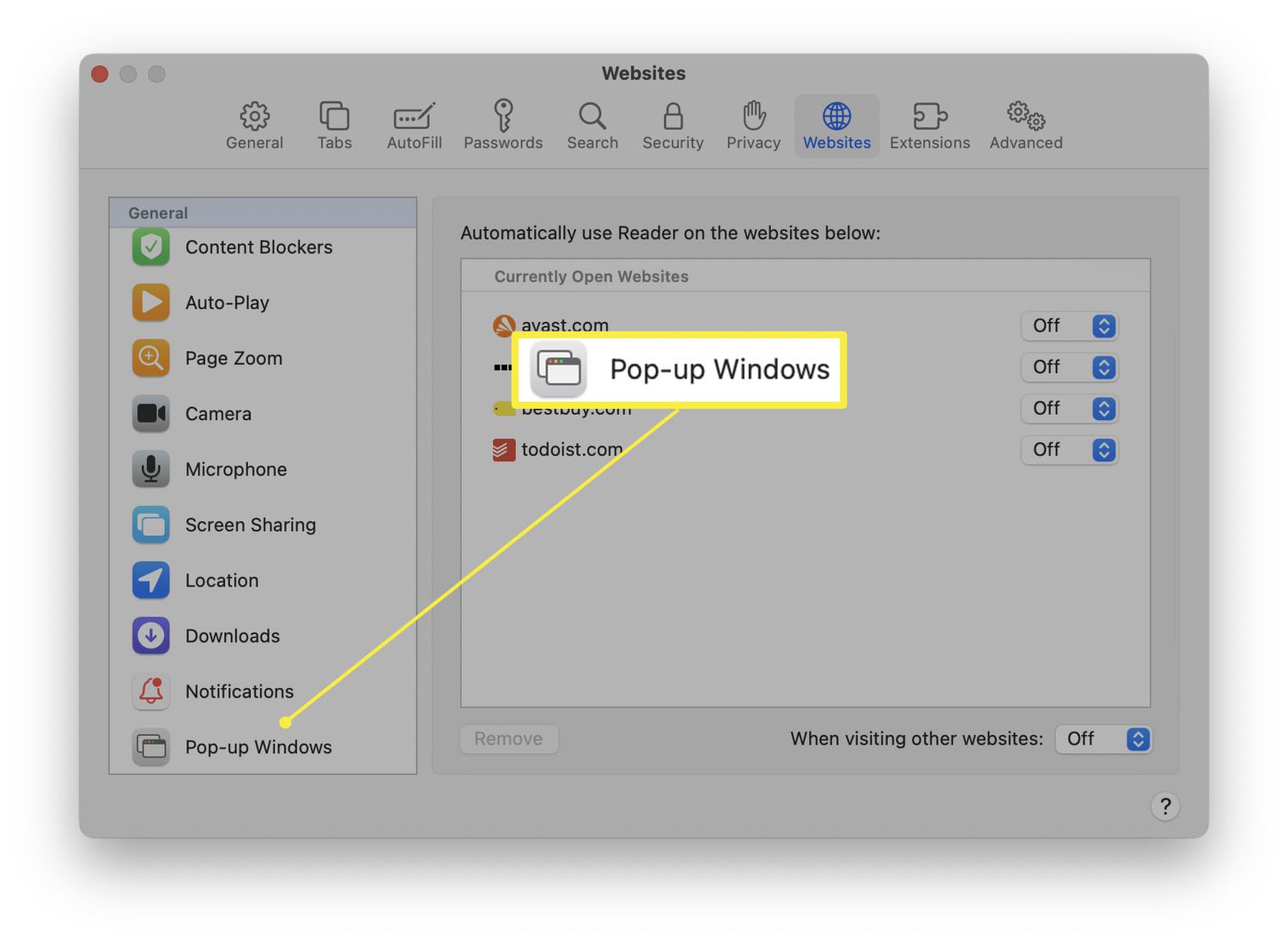
Image source: Lifewire
Turning Off the Blocker on iPhone and iPad
On iOS and iPadOS, Safari settings are not managed within the browser app itself. Instead, they are controlled through the device's main system settings. The iOS implementation is a strict global toggle; it does not offer the same site-by-site granularity found on the Mac version.
- Open the Settings app on your iPhone or iPad home screen.
- Scroll down and tap on Safari.
- Under the "General" section, locate the Block Pop-ups toggle.
- Tap the switch to turn it Off (the switch will turn grey instead of green).
Because this is a global setting, turning it off means every website you visit on your mobile device will be able to generate new windows. It is generally advisable to turn this setting back on once you have completed the specific task that required it.
How to Stop Microsoft Edge from Blocking Pop-Ups
Microsoft Edge, built on the same Chromium engine as Google Chrome, shares a very similar underlying architecture. However, Microsoft has customized the settings interface, meaning the navigation path is slightly different. According to Microsoft's technical Q&A documentation, Edge handles these permissions under its site permissions menu.
To adjust this setting in Microsoft Edge:
- Open Microsoft Edge and click the three horizontal dots (Settings and more) in the top-right corner.
- Select Settings from the menu.
- On the left sidebar, click on Cookies and site permissions.
- Scroll down the main page until you find the "All permissions" section, then click on Pop-ups and redirects.
- Toggle the switch next to Block (recommended) to the Off position.
Similar to Chrome, Edge also features an address bar icon that appears when a window is suppressed. Clicking this icon allows you to quickly add an exception for the current site without altering your global security posture.
How to Manage Pop-Up Settings in Mozilla Firefox
Mozilla Firefox uses its own proprietary engine and maintains a distinct settings hierarchy. Firefox is known for its strong stance on user privacy, and its default settings aggressively block unwanted window generation.
To disable this feature in Firefox:
- Open Firefox and click the application menu (three horizontal lines) in the top-right corner.
- Select Settings.
- Click on Privacy & Security in the left-hand panel.
- Scroll down to the Permissions section.
- Uncheck the box next to Block pop-up windows.
If you prefer to keep the global blocker active, you can click the Exceptions... button next to the checkbox. This opens a dialog where you can manually type in the URL of a trusted website (such as your bank or university portal) and click "Allow" to whitelist it permanently.
Why Your Pop-Ups Are Still Blocked After Changing Settings
A common source of frustration occurs when a user successfully follows the browser instructions to allow pop-ups, yet the required window still fails to open. This happens because modern computing environments utilize layered security. If the browser allows the window, another layer in the software stack might still intercept and block it.
Browser extensions like uBlock Origin, AdBlock Plus, or Ghostery operate independently of your browser's native settings. Even if Chrome or Edge is configured to allow pop-ups, these extensions will actively suppress scripts that attempt to open new windows. To fix this, click the puzzle piece icon (or extension icon) in your browser toolbar, open your ad blocker, and select "Pause on this site" or "Disable for this page."
Comprehensive security suites from providers like Norton, McAfee, or Bitdefender often include "Web Protection" or "Safe Browsing" modules. These programs monitor web traffic at the network level and can block window generation before the browser even processes the request. If you are struggling to open a trusted site, check your antivirus software's settings for a "Web Shield" or "Browser Protection" feature and temporarily add the website to its trusted list.
Operating systems have become increasingly aggressive about managing user attention. Features like "Focus Assist" on Windows 11 or "Do Not Disturb" on macOS can suppress new windows from taking focus on your screen. While they don't technically "block" the pop-up in the traditional sense, they can force the new window to open silently in the background or remain minimized, giving the illusion that the blocker is still active. Ensure your OS focus modes are disabled when trying to access critical documents.
Dealing with Greyed Out Settings on Work or School Computers
If you navigate to your browser's settings and find that the pop-up toggle is greyed out, locked, or displays a message stating "Managed by your organization," you are encountering an administrative policy. On devices issued by employers or educational institutions, IT departments use Mobile Device Management (MDM) profiles or Group Policy Objects (GPOs) to enforce security standards.
As detailed in enterprise documentation, these policies override user preferences. If you are on a managed device and cannot change the setting, you cannot bypass it locally. You must contact your IT helpdesk and request that they add the specific required URL to the organization's global whitelist.
How to Safely Allow Pop-Ups for Specific Websites Only
Cybersecurity professionals generally advise against using the global "Off" switch for pop-up blockers. Disabling the blocker entirely exposes your browser to malicious scripts, phishing attempts, and intrusive advertising across the entire internet. Instead, the recommended approach is to use the "Whitelist" method.
Whitelisting involves keeping the global blocker turned ON, but adding specific, trusted websites to an "Exceptions" or "Allow" list. This ensures that your bank can open a PDF statement, but a random streaming site cannot open a malicious advertisement.
How it works: Disables the browser's protection mechanism entirely for every website you visit.
Security Risk: High. Leaves you vulnerable to drive-by downloads, tech support scams, and aggressive advertising.
Best for: Temporary troubleshooting only. Should be turned back on immediately after use.
How it works: Keeps protection active, but creates specific rules for trusted URLs (e.g., [*.]chase.com).
Security Risk: Low. Maintains your defense against unknown and potentially malicious websites.
Best for: Long-term configuration. A top-tier approach for managing banking, school, and work portals safely.
To manually add a site to your whitelist in Chrome or Edge, navigate to the Pop-ups and redirects settings page as described earlier. Instead of changing the global toggle, look for the section labeled Allowed to send pop-ups and use redirects. Click the Add button and type the web address of the trusted site. Using the format [*.]example.com ensures that all subdomains (like secure.example.com or mail.example.com) are also permitted.
Troubleshooting Common Pop-Up Confusion
Browser terminology can be confusing, and users often misidentify the type of barrier they are facing. Understanding the difference between various web elements can save significant troubleshooting time.
Pop-Ups vs Web Notifications
A frequent complaint is: "I turned my pop-up blocker on, but I'm still getting pop-ups in the corner of my screen." In modern web architecture, these are rarely traditional pop-ups. They are usually Web Notifications.
A traditional pop-up is a completely new browser window (or tab) generated by a JavaScript window.open() command. A Web Notification is a small, system-level alert box that slides in from the corner of your screen, often asking if a site can "Show notifications."
Changing your pop-up settings will not stop Web Notifications. To stop these alerts, you must navigate to your browser's Site Settings, locate the Notifications menu, and change the default behavior to "Don't allow sites to send notifications."
The Printing and PDF Barrier
One of the most common reasons users seek to disable their blockers is to print documents. Many enterprise systems, university portals (like KSIS at Kansas State University), and payroll software use a specific method to generate printable documents. When you click "Print," the software generates a temporary PDF file and attempts to open it in a new, borderless browser window.
Because this action is triggered by a script rather than a direct HTML link, the browser interprets it as an unsolicited pop-up and blocks it. If you click a "Print" or "Download Receipt" button and nothing happens, check your address bar for the blocked window icon. Allowing the pop-up for that specific session will usually force the print dialog box to appear.
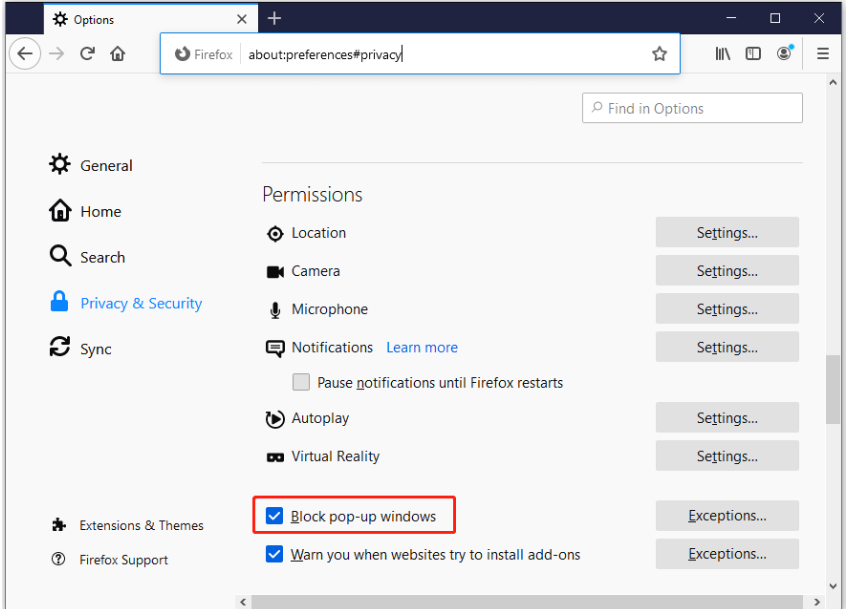
Image source: HRD Corp Support Centre
Frequently Asked Questions
Final Thoughts and Quick Reference Checklist
Managing your browser's pop-up settings is a necessary skill for navigating modern web applications. While it can be frustrating when a required document or payment gateway fails to load, understanding the mechanics behind these blockers allows you to resolve the issue quickly. Remember that the whitelist method—adding specific exceptions for trusted sites—is widely regarded as a top-tier approach for balancing convenience with cybersecurity.
If you are still struggling to get a window to open, run through this final troubleshooting checklist:
- Verify your browser's Site Settings are configured to allow the specific URL.
- Check the far right of your address bar for the "blocked window" icon (the Red X).
- Pause any third-party ad-blocking extensions for the page you are currently on.
- Review your antivirus software to ensure its Web Shield isn't intercepting the script.
- Disable OS-level focus modes (like Windows Focus Assist or Mac Do Not Disturb) temporarily.
Next time a critical window fails to load, check your address bar first before digging into your browser's deeper settings menus.