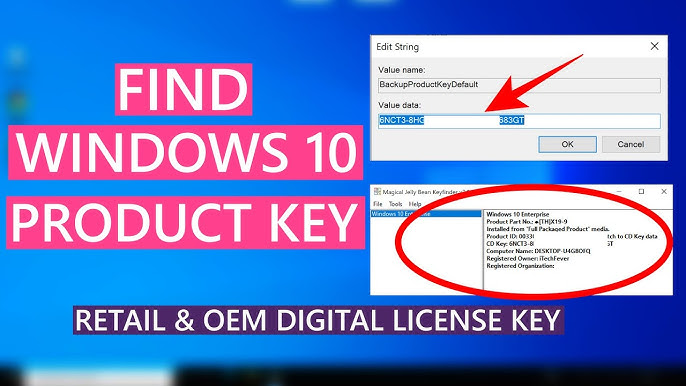
Image source: YouTube
A Windows 10 product key is a 25-character alphanumeric code used to activate your operating system. It is always formatted in five groups of five characters, looking exactly like this: XXXXX-XXXXX-XXXXX-XXXXX-XXXXX.
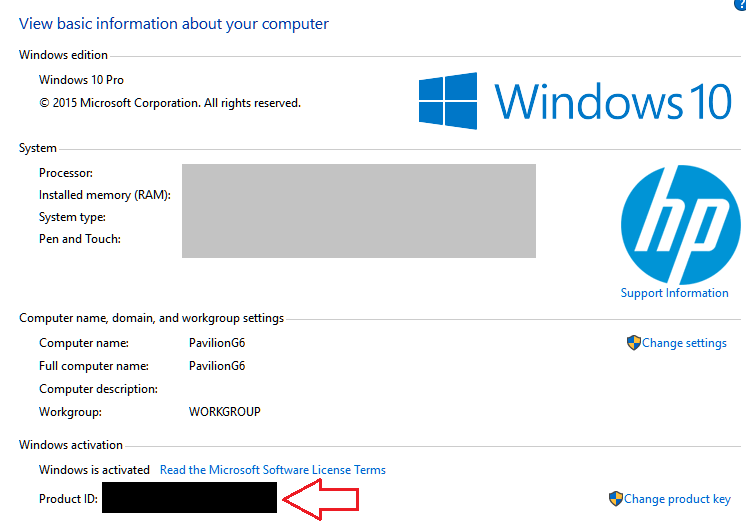
It is crucial to understand the difference between your Product Key and your Product ID. If you navigate to Settings > System > About, you will see a "Product ID." This is a completely different code used by Microsoft for technical support purposes. You cannot use the Product ID to activate Windows or reinstall your operating system. To find your actual 25-character activation key, you will need to use the command line, the registry, or check your digital license settings as detailed below.
Losing access to your Windows 10 product key can be a highly frustrating experience, especially when you are in the middle of a system rebuild, a motherboard replacement, or a fresh installation. In the early days of computing, finding your key was as simple as looking for a brightly colored Certificate of Authenticity (COA) sticker on the side of your desktop tower or the bottom of your laptop. However, modern hardware manufacturers and Microsoft have largely done away with physical stickers to prevent theft and streamline the manufacturing process.
Today, your product key is likely embedded deep within your computer's firmware, stored in the Windows Registry, or linked directly to your Microsoft Account in the cloud. Depending on how you acquired your copy of Windows 10—whether it came pre-installed on a new device, was purchased digitally, or was upgraded from an older version of Windows—the method you need to use to retrieve it will vary significantly.
This comprehensive guide will walk you through the most reliable methods to view your Windows 10 product key, explain why some common command-line tricks might return a blank result, and show you how to recover a key even if your computer refuses to boot.
For the vast majority of users who purchased a pre-built computer from major manufacturers like Dell, HP, Lenovo, or Acer, the product key is embedded directly into the motherboard's UEFI/BIOS firmware. This is known as an Original Equipment Manufacturer (OEM) key. Because the key is tied to the physical hardware, you can easily extract it using a built-in Windows command-line utility called Windows Management Instrumentation Command-line (WMIC).
This method is highly reliable for pre-built systems because it queries the hardware directly, bypassing the operating system's software registry. If you ever need to reinstall Windows 10 on that specific machine, the installation media will typically detect this embedded key automatically. However, if you need to view it for your records, here is exactly how to do it.
If your computer has an OEM key embedded in its firmware, the Command Prompt will return a 25-character string immediately below the command you just entered. According to Tom's Hardware, this is the industry standard method for retrieving OEM Activation 3.0 (OA3) keys.
It is important to note that this command will only return a result if the key is physically injected into the BIOS. If you receive a blank line in return, do not panic. This simply means your computer uses a different type of license, which we will address in the troubleshooting sections below.
While the Command Prompt method is a classic, many IT professionals and system administrators prefer using Windows PowerShell. PowerShell is a more robust, modern task automation and configuration management framework. In some instances, strict system policies or corrupted environmental variables might prevent the legacy WMIC tool from functioning correctly in the Command Prompt. When that happens, PowerShell serves as an excellent, highly reliable alternative.
The PowerShell method queries the exact same hardware location (the Software Licensing Service class within the WMI infrastructure) but uses a different syntax to retrieve the data. This method is equally safe and does not require downloading any third-party software.
To view your Windows 10 product key using PowerShell, follow these steps:
Just like the Command Prompt method, if your system contains an embedded OEM key, PowerShell will output the 25-character alphanumeric string on the next line. If your system execution policies are set to strictly block scripts, you might encounter a red error text. However, because this is a direct WMI query rather than an executable script file, it typically bypasses standard execution policy restrictions, making it a highly dependable fallback method.
If the command-line methods return a blank result, your next best option is to check the Windows Registry. The Registry is a massive hierarchical database that stores low-level settings for the operating system and for applications that opt to use the registry. When you activate Windows using a Retail key (a key you purchased separately from the computer) or a digital upgrade, the operating system stores a backup of that key within a specific registry hive.
Navigating the Registry Editor requires caution. Deleting or modifying the wrong keys can cause severe system instability. However, simply viewing a registry entry is completely safe. Here is how to locate your product key within the registry:
Once you have selected the SoftwareProtectionPlatform folder on the left, look at the right-hand pane. You are looking for a specific string value named BackupProductKeyDefault. The data column next to this entry will display your 25-character product key.
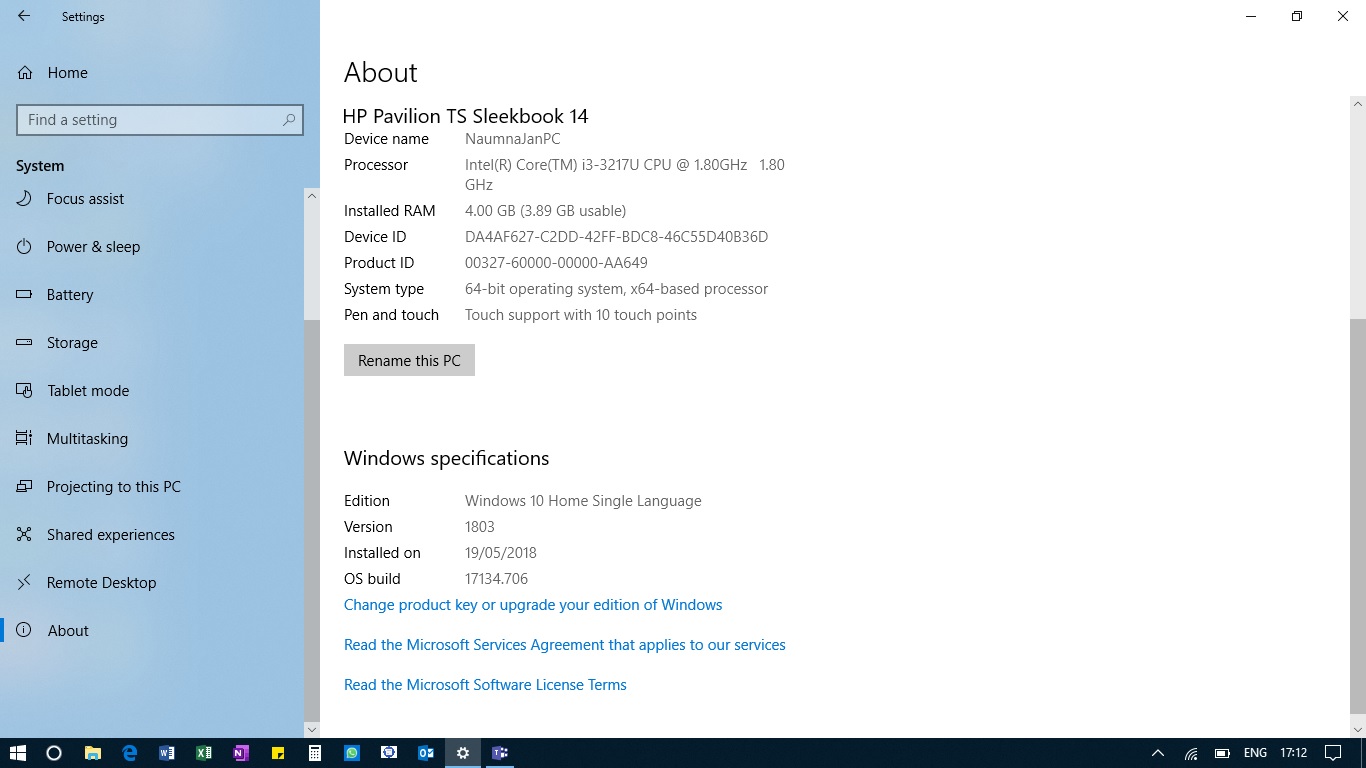
BackupProductKeyDefault might be a "Generic Key" (such as one ending in 3V66T). Generic keys are placeholders used by Microsoft to facilitate digital upgrades; they cannot be used to activate a fresh installation of Windows on a new computer.
If you are frantically searching for a product key to reinstall Windows on your current machine, you might be relieved to learn that you probably don't need one at all. Microsoft fundamentally changed how activation works with the release of Windows 10 by introducing the concept of "Digital Entitlement," now officially known as a Digital License.
A digital license is a method of activation in Windows 10 that doesn't require you to enter a product key. Instead, your computer's unique hardware signature (primarily based on your motherboard) is registered on Microsoft's activation servers. Furthermore, if you log into Windows with a Microsoft Account, that digital license becomes linked to your account.
To check if your computer is using a digital license, follow these steps:
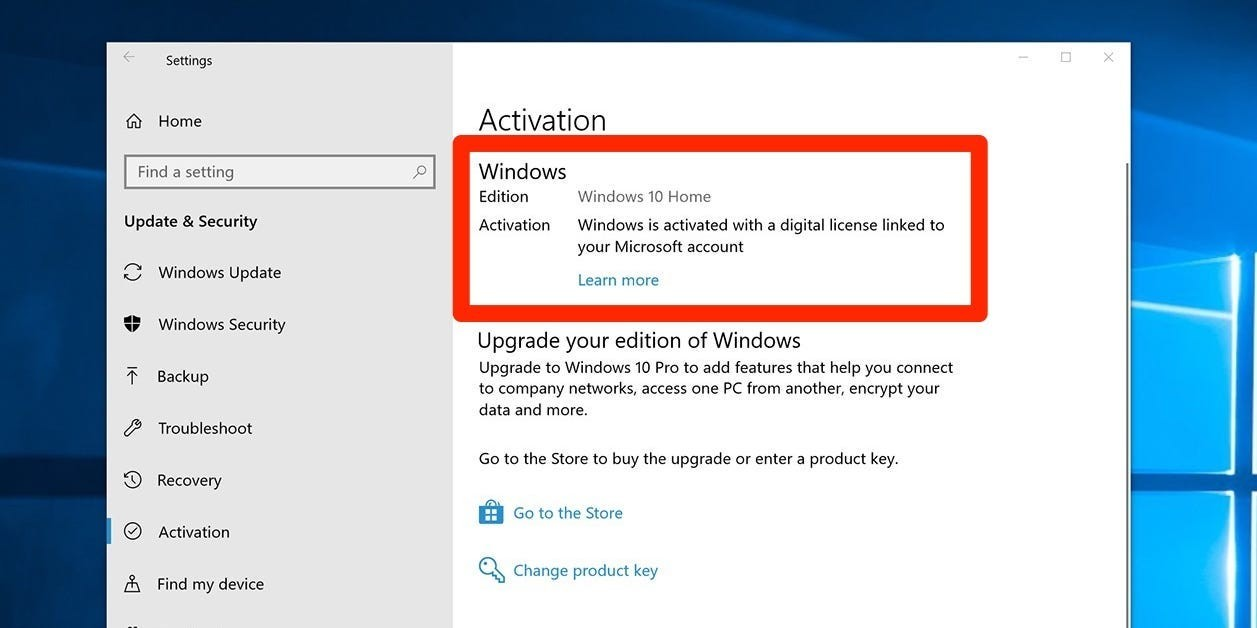
Look at the text next to the word "Activation." According to Microsoft Support, you will see one of two primary messages:
If you have a digital license, the pursuit of a 25-character product key is largely unnecessary for standard reinstallations, as the cloud handles the verification process seamlessly.
One of the most common points of frustration for users following online tutorials is running the wmic or PowerShell commands and receiving absolutely nothing in return—just a blank line blinking back at them. This is not a glitch, nor does it mean your copy of Windows is pirated. It simply comes down to how your specific license was distributed.
The command-line tools are explicitly designed to query the ACPI (Advanced Configuration and Power Interface) tables within your motherboard's BIOS/UEFI. This is where OEM manufacturers inject keys during assembly. However, if your computer falls into any of the following categories, your BIOS will be completely empty, resulting in a blank command prompt output:
If you get a blank result, you must pivot your strategy. You cannot extract a key from the BIOS if it was never there to begin with. Instead, you must rely on the Registry method outlined above, or utilize a vetted third-party key finder tool that can read the "Installed Key" from the software layer rather than the hardware layer.
A particularly stressful scenario occurs when your computer's motherboard dies, or the Windows installation becomes so corrupted that the PC refuses to boot. You plan to build a new computer or replace the drive, but you desperately need to extract your Retail product key from the dead system first. Since you cannot boot into Windows to run Command Prompt or check Settings, you have to extract the key externally.
This requires a slightly advanced technical process known as "Loading a Registry Hive." You will need a working secondary computer and a SATA-to-USB adapter (or an external hard drive enclosure) to connect the dead computer's hard drive to the working PC.
Once the old drive is connected to the working computer, follow these steps to extract the key:
regedit).[External Drive Letter]:\Windows\System32\config\config folder, locate the file named SOFTWARE (it will have no file extension). Select it and click Open.HKEY_LOCAL_MACHINE\OldPC_Software\Microsoft\Windows NT\CurrentVersion\SoftwareProtectionPlatform.BackupProductKeyDefault entry on the right side to view your recovered key.OldPC_Software, click File, and select Unload Hive to safely detach the registry file before unplugging the drive.If this manual registry extraction feels too daunting, you can use a third-party auditing tool like Belarc Advisor on the working PC, which has the capability to scan external drives for software licenses.
The internet is flooded with "free product key finders," but this software category is notoriously riddled with malware, adware, and trojans. Because key finders inherently need deep system access to read registry files and firmware, malicious actors frequently disguise viruses as key recovery tools. Therefore, you must be incredibly selective about which third-party software you execute on your machine.
Based on community consensus and IT professional recommendations, here are the safest and most effective tools for viewing your Windows 10 product key:
ShowKeyPlus is widely considered the gold standard for Windows key retrieval. What makes it exceptionally safe is that it is open-source and available directly through the official Microsoft Store. By downloading it from the Microsoft Store, you ensure the application has been vetted and sandboxed by Microsoft, eliminating the risk of downloading a compromised .exe file from a shady third-party website.
ShowKeyPlus is highly valuable because it eliminates the confusion between OEM and Retail keys. The interface clearly displays the "Installed Key" (what is currently running in the OS) and the "OEM Key" (what is embedded in the BIOS). It will also warn you if your installed key is a generic placeholder, saving you from future activation headaches.
Belarc Advisor is a legacy IT auditing tool that has been trusted by professionals for over two decades. While it is overkill if you only want a product key, it is incredibly useful if you want a comprehensive profile of your entire system. Belarc generates a local HTML file in your web browser detailing your hardware specs, missing security updates, and software licenses—including your Windows 10 product key. It is completely free for personal use and does not send your data to the cloud.
When you finally view your 25-character key, its utility depends entirely on what type of license it is. Not all Windows 10 keys are created equal. Understanding your license type is critical, especially if you plan to upgrade your PC's hardware or transfer the license to a new build.
According to IT management experts at NinjaOne, failing to understand license restrictions is a common cause of activation failures. Here is a breakdown of the three primary license types:
| License Type | How It Is Acquired | Transferability | Where the Key is Stored |
|---|---|---|---|
| OEM (Original Equipment Manufacturer) | Pre-installed on computers from major brands (Dell, HP, Lenovo). | Non-Transferable. The key is permanently tied to the original motherboard. If the motherboard dies, the license dies with it. | Embedded in the UEFI/BIOS firmware. |
| Retail (Full Packaged Product) | Purchased separately from a retailer (Amazon, Best Buy) or the Microsoft Store. | Fully Transferable. You can move this license to a new computer, provided you deactivate it on the old one first. | Windows Registry and linked to your Microsoft Account. |
| Volume (MAK / KMS) | Purchased in bulk by enterprises, schools, and government organizations. | Managed by IT. End-users cannot transfer these keys. They require periodic check-ins with a corporate activation server. | Managed via the Volume Licensing Service Center (VLSC). |
slmgr /upk (Uninstall Product Key), then press Enter.
Sometimes, even when you have your legitimate 25-character product key written down, Windows 10 will refuse to activate. This most commonly occurs after a significant hardware change, such as replacing a faulty motherboard. Because the motherboard is the primary component Microsoft uses to identify your PC, a new motherboard makes the activation servers think you are trying to install Windows on a completely different computer.
If the standard internet activation fails and the activation troubleshooter cannot resolve the issue, community PC builders frequently rely on a legacy command to force the automated phone activation system to appear.
This method forces Microsoft's backend to release the hardware lock on your old motherboard and reassign your Retail key to the new hardware configuration.
Retrieving your Windows 10 product key doesn't have to be a frustrating guessing game. By understanding how modern digital licensing works and knowing where your specific type of key is stored, you can quickly secure your activation credentials before a system rebuild.
BackupProductKeyDefault entry, but be wary of generic placeholder keys if you upgraded from an older OS.slui 4 command to trigger the automated phone activation system if a motherboard swap causes your legitimate key to fail online verification.Open your Windows Settings right now to verify that your activation status says "linked to your Microsoft account" to ensure you never lose your license.