Why You Are Still Getting Ads on YouTube Premium and How to Fix It
Paying for a subscription service specifically designed to remove advertisements, only to have your viewing experience interrupted by a commercial break, is a highly frustrating experience. For subscribers of YouTube Premium, ad-free playback is the primary selling point. When that feature fails, it often leads to confusion regarding whether the platform has changed its terms of service or if the account itself is malfunctioning.
In the vast majority of cases, seeing ads on a Premium account is not a policy change, but rather a technical glitch, an account synchronization error, or a misunderstanding of what specific types of promotional content the subscription actually covers. Resolving the issue usually requires a few specific troubleshooting steps rather than a complete cancellation of the service.
If you are currently seeing ads and need an immediate resolution, verify these common failure points before diving into deeper technical fixes:
- Verify the UI Logo: Look at the top-left corner of your screen or app. It should explicitly say "Premium." If it only says "YouTube," the app does not recognize your active subscription.
- Check Account Status: Navigate to your profile picture, select Purchases and memberships, and confirm your subscription is listed as "Active."
- Refresh the Session Token: Sign completely out of the application or browser, close it, and sign back in to force the server to issue a new authentication token.
- Disable Incognito Mode: Premium benefits are tied to your logged-in session. They do not apply in Incognito or Private Browsing windows.
Why Does YouTube Premium Still Show Ads?
When the ad-free experience breaks down, it is essential to identify the root cause. The platform's ad-serving infrastructure is complex, and the system relies on continuous communication between your device, your browser cookies, and Google's authentication servers. A breakdown in any of these areas can result in the default ad-supported experience loading instead.
You Might Be Signed Into the Wrong Google Account
The most frequent cause of unexpected advertisements is an account mismatch. Many users maintain multiple Google accounts—such as a personal email, a work email, and a dedicated "Brand Account" used specifically for managing a YouTube channel. According to technical support experts, Premium benefits are strictly tied to the specific email address that initiated the purchase.
If you purchased the subscription under your personal Gmail account but frequently switch to your Brand Account to leave comments or upload videos, the Premium benefits will not carry over to the Brand Account unless they are explicitly linked under a family plan. Always verify which avatar is currently active in the top right corner of the interface.
Your Subscription Tier Might Not Cover All Content
Google offers several variations of its subscription service, and the naming conventions can occasionally mislead users regarding what is actually included. The standard "YouTube Premium" covers all video and music content across the platform. However, alternative tiers have specific limitations.
For example, users subscribed to "YouTube Music Premium" will enjoy an ad-free experience within the dedicated Music app, but will still encounter standard pre-roll and mid-roll ads when watching standard vlogs, gaming videos, or documentaries on the main platform. Similarly, the "Premium Lite" tier—available in select regions—removes ads from standard videos but specifically retains ads on music content. If you are on the Lite tier and watch a vlog that features a copyrighted song flagged by Content ID, the system may classify the video as "Music" and serve an ad.
Creator Sponsorships Are Not Platform Ads
A common point of confusion arises from the distinction between platform-served advertisements and creator-integrated sponsorships. When a creator pauses their video to say, "This video is sponsored by..." and discusses a product for sixty seconds, this is a baked-in sponsorship.
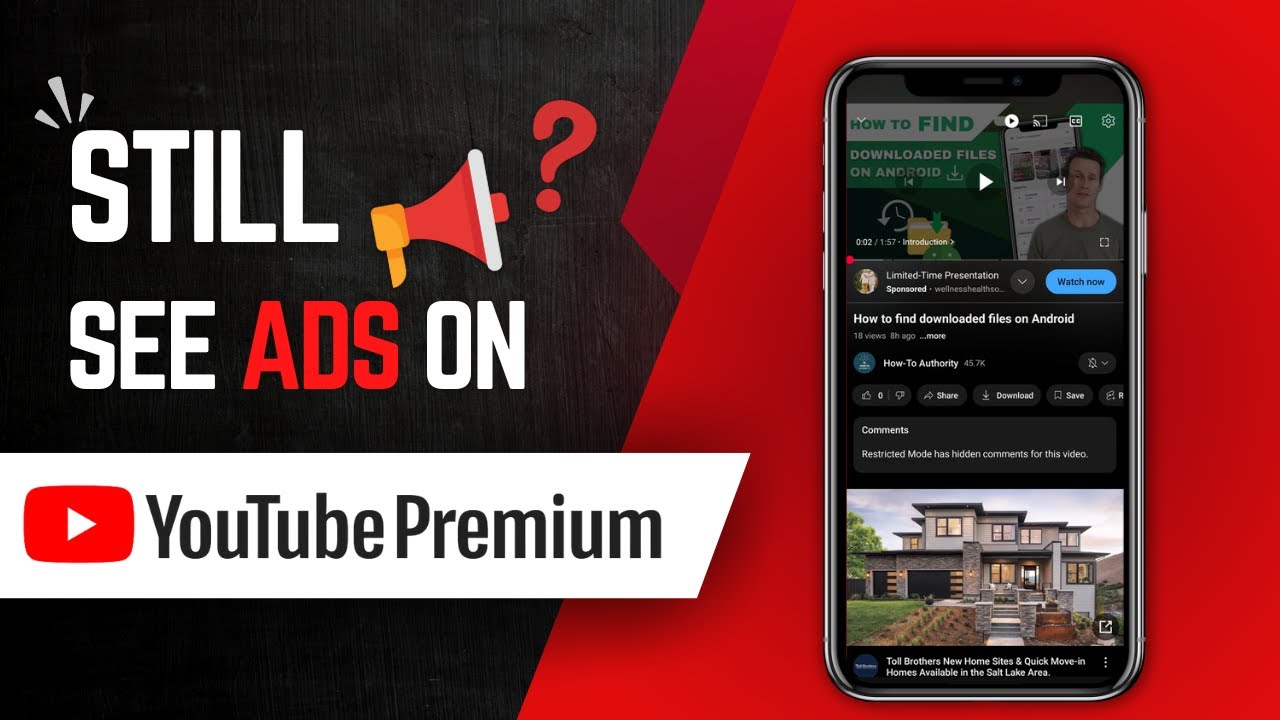
Image source: YouTube
Because these segments are permanently rendered into the video file by the creator before uploading, YouTube's ad-blocking infrastructure cannot remove them. As noted in various community discussions, these sponsorships are a separate revenue stream for creators and are entirely exempt from Premium's ad-free guarantee. If you wish to bypass these segments, you must manually scrub past them using the video timeline.
How to Fix YouTube Premium Ads on Different Devices
If you have confirmed that your subscription is active, you are logged into the correct account, and the promotional content is definitely a platform-served ad rather than a creator sponsorship, the issue is likely localized to the specific device you are using. Troubleshooting steps vary significantly depending on the hardware.
Clearing the App Cache on Android and iOS
Mobile applications store temporary data—known as cache—to load interfaces faster and reduce bandwidth usage. Over time, this cached data can become corrupted or fall out of sync with your live account status. If the app's cache holds onto an outdated session token, it may fail to recognize your Premium status.
For Android users:
- Open your device's Settings application.
- Navigate to Apps or App Management.
- Locate and select YouTube from the list.
- Tap on Storage & cache.
- Select Clear Cache (do not select Clear Data unless you want to delete your downloaded offline videos).
- Restart the application.
For iOS users: Apple's operating system does not provide a direct "Clear Cache" button for third-party apps. To achieve the same result, you must navigate to Settings > General > iPhone Storage > YouTube, and select Offload App. This removes the core application files while keeping your documents and data intact. Reinstalling the app from the App Store will force it to fetch a fresh authentication token.
Fixing Ad Issues on Smart TVs and Gaming Consoles
Smart TVs, streaming sticks (like Roku or Apple TV), and gaming consoles frequently experience synchronization issues, particularly when utilizing the "Cast" feature from a mobile device. When you cast a video from your phone to your television, the TV application takes over the playback stream.
If your mobile phone is logged into your Premium account, but the YouTube application installed on your Smart TV is logged into a free account (or logged out entirely), the TV will serve ads. According to official documentation, you must ensure that the destination device is authenticated with the exact same Premium credentials as the casting device.
Solving the Embedded Video Ad Problem on Desktop
One of the most persistent and least understood issues occurs when watching YouTube videos embedded on third-party websites, such as news articles or personal blogs. Users frequently report seeing pre-roll ads on these embedded players despite being logged into Premium on the main YouTube website.
Embedded video players rely on third-party cookies to verify your identity. If your web browser (such as Chrome, Safari, or Firefox) is configured to block third-party cookies for privacy reasons, the embedded player cannot "see" that you are a Premium subscriber. It treats you as an anonymous, logged-out user and serves advertisements accordingly.
To resolve this issue in Google Chrome without compromising your overall browser privacy, you can create a specific exception for YouTube's authentication servers:
- Click the three-dot menu in the top right corner of Chrome and select Settings.
- Navigate to Privacy and security, then click on Third-party cookies.
- Scroll down to the section labeled Allowed to use third-party cookies.
- Click Add and enter the following exact string:
[*.]youtube.com - Check the box that says "Including third-party cookies on this site" and click Add.
Once this exception is in place, embedded players across the web will be able to read your session token and apply your ad-free benefits.
Understanding the Difference Between YouTube Premium Tiers
As Google continues to experiment with different subscription models across various global markets, understanding exactly what your specific tier covers is crucial. Many users upgrade during promotional periods without fully reviewing the limitations of the discounted plans.
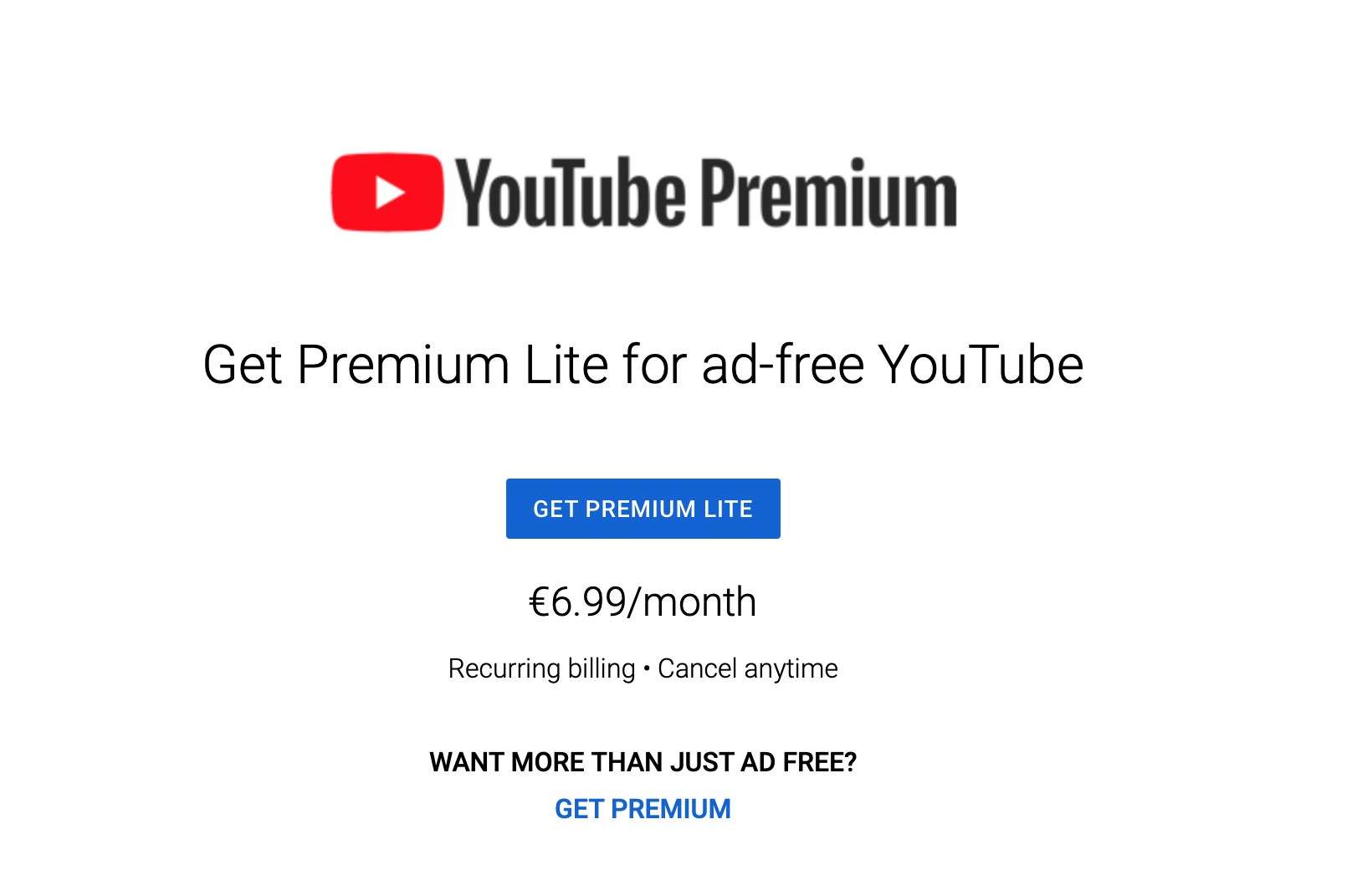
Image source: The Verge
The table below outlines the core differences between the primary subscription offerings and how they handle promotional content:
| Feature | Free Tier | Music Premium | Premium Lite (Select Regions) | Full Premium |
|---|---|---|---|---|
| Ad-Free Standard Videos | No | No | Yes | Yes |
| Ad-Free Music Content | No | Yes | No (Ads remain on music) | Yes |
| Background Playback | No | Music App Only | No | Yes |
| Offline Downloads | No | Music App Only | No | Yes |
| Creator Sponsorships Blocked | No | No | No | No |
If you are currently subscribed to the Lite tier and find the presence of ads on music-related content disruptive, the only platform-supported resolution is to upgrade to the full Premium tier. Keep in mind that the definition of "Music Content" is determined by the platform's automated Content ID system; even a standard tutorial video might trigger an ad on the Lite tier if it utilizes a heavily copyrighted background track.
Hidden Settings That Look Like Ads But Aren't
Occasionally, the visual interruptions users experience are not traditional advertisements at all, but rather interactive platform features designed to drive engagement. Because these elements pop up over the video player, they are frequently mistaken for commercial interruptions.
How to Turn Off In-Video Info Cards
Creators have the ability to insert "Info Cards" into their videos. These appear as small, interactive banners sliding in from the top right corner of the screen, usually prompting the viewer to watch a related video, participate in a poll, or visit an external website. While they are not paid advertisements served by Google, they can be visually distracting.
Image source: Stephen Foskett, Pack Rat
If you find these cards intrusive, you can disable them globally across your account. On mobile devices, tap your profile picture, navigate to Settings, select General, and toggle off the switch labeled Show in-video info cards. This will suppress the visual pop-ups, though the underlying links will still be accessible in the video description.
Why You See Ads During Live Streams and Primetime Channels
There are specific categories of content where even a full Premium subscription cannot guarantee an ad-free experience due to complex broadcasting rights and third-party licensing agreements. If you are watching a live sporting event, a syndicated television broadcast, or content hosted on third-party "Primetime Channels" (such as NFL Sunday Ticket or integrated streaming networks), you will likely still see commercial breaks.
In these instances, the advertisements are often embedded directly into the live broadcast feed provided by the network, much like traditional television. Google does not have the legal authority or technical capability to strip these broadcast ads from the live stream, making them an unavoidable exception to the Premium terms of service.
What to Do If None of These Fixes Work
If you have exhausted all local troubleshooting steps—clearing caches, verifying accounts, fixing cookies, and confirming your tier—and you are still receiving standard pre-roll advertisements on regular videos, the issue may lie on Google's end. Server-side synchronization errors occasionally occur, requiring escalation.
Premium benefits are geographically restricted. If you have recently traveled to a country where the service is not officially supported, your benefits will be temporarily suspended until you return to a supported region. Using a VPN to route your traffic through an unsupported country will yield the same result.
Before spending hours troubleshooting your local network, check the Google Help Community forums. When widespread authentication bugs occur, community managers typically pin a "Known Issue" thread to the top of the forum acknowledging the problem and providing an estimated timeline for a server-side patch.
If the issue is isolated to your account and persists for more than 48 hours, you will need to contact support directly. Navigate to the Help center, select "Contact Us," and specifically request "Account Verification Support." Be prepared to provide your transaction ID from your most recent billing receipt to prove your active status. If the service was fundamentally broken for an extended period, you may be eligible to request a prorated refund for the affected billing cycle.
Frequently Asked Questions
Does YouTube Premium remove ads from embedded videos on other websites?
Yes, it is designed to remove ads from embedded players. However, this functionality relies entirely on third-party cookies. If your browser (like Safari or a privacy-hardened Chrome setup) blocks third-party cookies, the embedded player cannot verify your Premium status and will serve ads. You must add an exception for YouTube's cookies in your browser settings.
Why am I seeing "Sponsored" segments in videos despite paying for Premium?
Premium only removes advertisements served by Google's ad network (the ones you can usually skip after 5 seconds). When a creator personally reads an ad script during a video, that footage is permanently edited into the video file itself. Google cannot remove these baked-in sponsorships, so they will always appear regardless of your subscription status.
Why does my YouTube Premium Family Plan still show ads for some members?
This is almost always an invitation or activation issue. The family manager must send an official invitation via email, and the recipient must actively accept it while logged into their specific Google account. Furthermore, all family members must technically reside in the same household; if Google's systems detect vastly different geographic IP addresses over time, it may suspend the secondary accounts' benefits.
Can I get a refund if I saw ads while paying for Premium?
If the issue was caused by a documented server-side error on Google's part that lasted for a significant portion of your billing cycle, you can contact customer support to request a refund or account credit. However, if the ads were caused by user error (such as being logged into the wrong account or watching in Incognito mode), refunds are typically denied.
Does YouTube Premium Lite still exist?
The availability of the Lite tier fluctuates based on regional testing. As of recent updates, it is only available in select European and Asian markets. It is important to note that the Lite tier specifically does not remove ads from music-related content, which is a frequent source of confusion for subscribers who assume it covers all videos.
The Bottom Line
Encountering advertisements while paying for a premium subscription is an incredibly jarring experience, but it is rarely a permanent change to your account terms. By systematically checking your session data and understanding the limitations of your specific tier, you can restore your ad-free experience quickly.
- Verify your active profile: Ensure you are not accidentally logged into a secondary Brand Account that lacks subscription benefits.
- Check the top-left logo: The interface must explicitly display the Premium logo; if it doesn't, your session token has likely expired.
- Clear application data: Purging the app cache on Android or offloading the app on iOS forces a fresh server authentication.
- Allow third-party cookies: To stop ads on embedded videos across the web, you must whitelist YouTube's cookies in your browser privacy settings.
- Identify the ad type: Remember that creator sponsorships and live broadcast commercials are exempt from the ad-free guarantee.
- Review your tier: If you are on the Lite tier, you will continue to see advertisements on any video flagged as music content.